If you sell marketing services, finding companies that are ready to buy is the hardest part of outreach. PPC Lead Intelligence by PPC Ad Lab helps you identify businesses that are currently running paid ads, understand what they are promoting, and contact them without manual research.
How PPC Lead Intelligence Can Help You
PPC Lead Intelligence is designed for agencies, freelancers, and sales teams who want to reach companies already investing in paid advertising.
With this app, you can:
- Discover advertisers in real time, based on keywords and locations
- See exactly which ads they are running right now
- Identify high-intent prospects already spending marketing budgets
- Access company and contact data to start outreach faster
Instead of guessing who might need your services, you focus on businesses that are already paying to be visible.
Pricing and Limits
The monthly subscription fee for the PPC Lead Intelligence app is $97.
PPC Lead Intelligence monthly subscription gives you access to:
- Real-time detection of running PPC ads
- Unlimited keyword & location searches
- Advertiser overview with market size and activity
- Live search ad copies
- Advertiser lists with campaign intensity and locations
- Location-based ad activity insights
- Contact information for outreach
- Export-ready CSV files
How to Use PPC Lead Intelligence
Step 1: Search for Advertisers
Enter a company name or keyword into the search field to start your research.

The app scans the web in real time and detects companies currently running search ads across Google, Maps, and other platforms.
If you have already searched for active advertisers before, you will have a list of projects.

For each project, you will see a short overview of the data collected, such as Ads, Keywords, Advertisers, and Contacts.
You can also perform several quick actions on the project level by clicking the corresponding icon:
- “Pause” - pause the continuous data refresh in the project
- “Pencil” - edit project settings
- “Download” - export project report to PDF
- “Bin” - delete project
Step 2: Analyze the Market Overview
After the search, you’ll see an overview of the advertising market for your keyword and location. Use this view to quickly assess demand and competition before diving deeper.
At the top of the page, review:
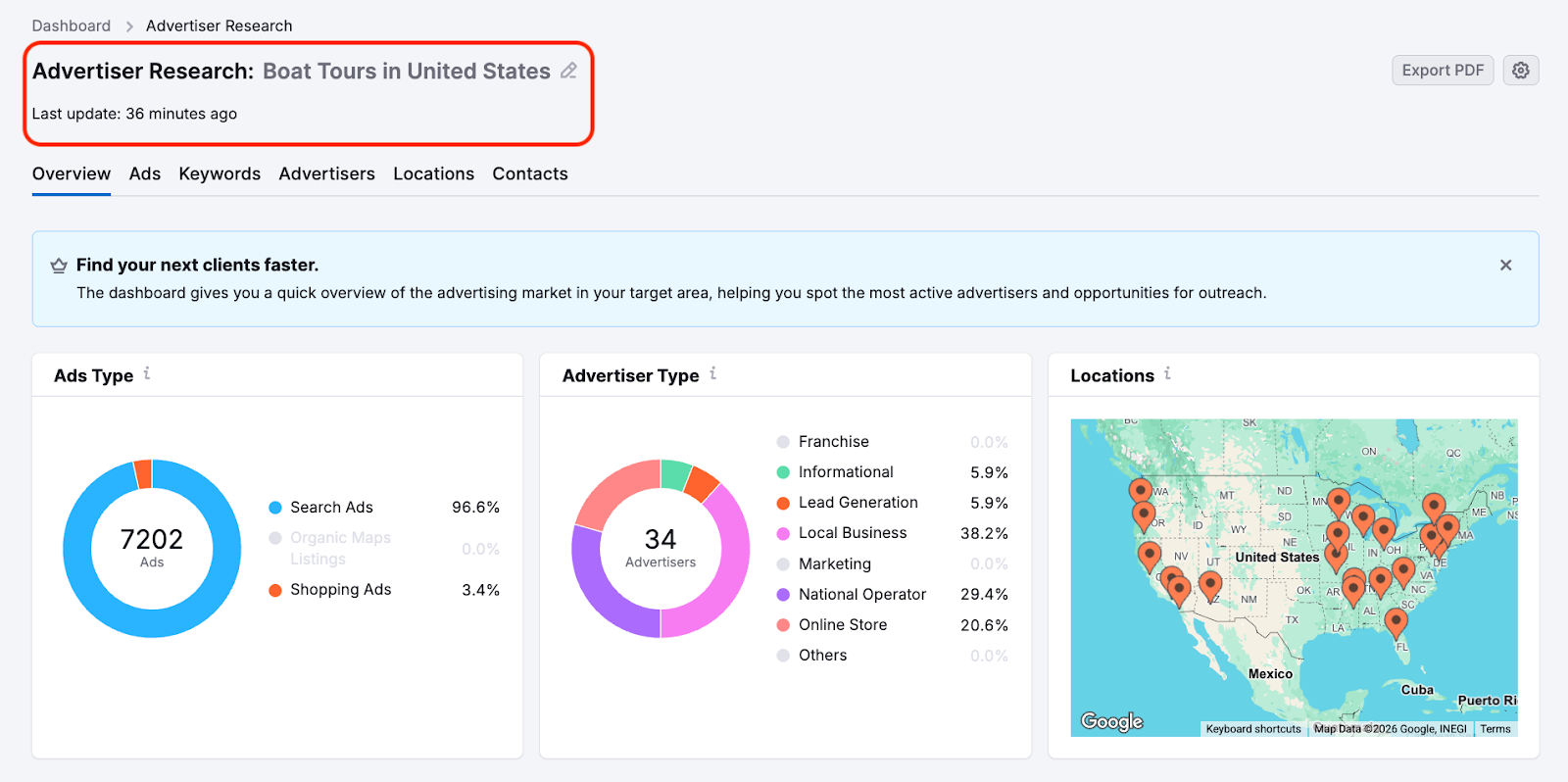
- The research name (for example, Ski shop in Barcelona) and the last update timestamp to confirm how recently the data was refreshed
This ensures you are analyzing the correct market with up-to-date data.
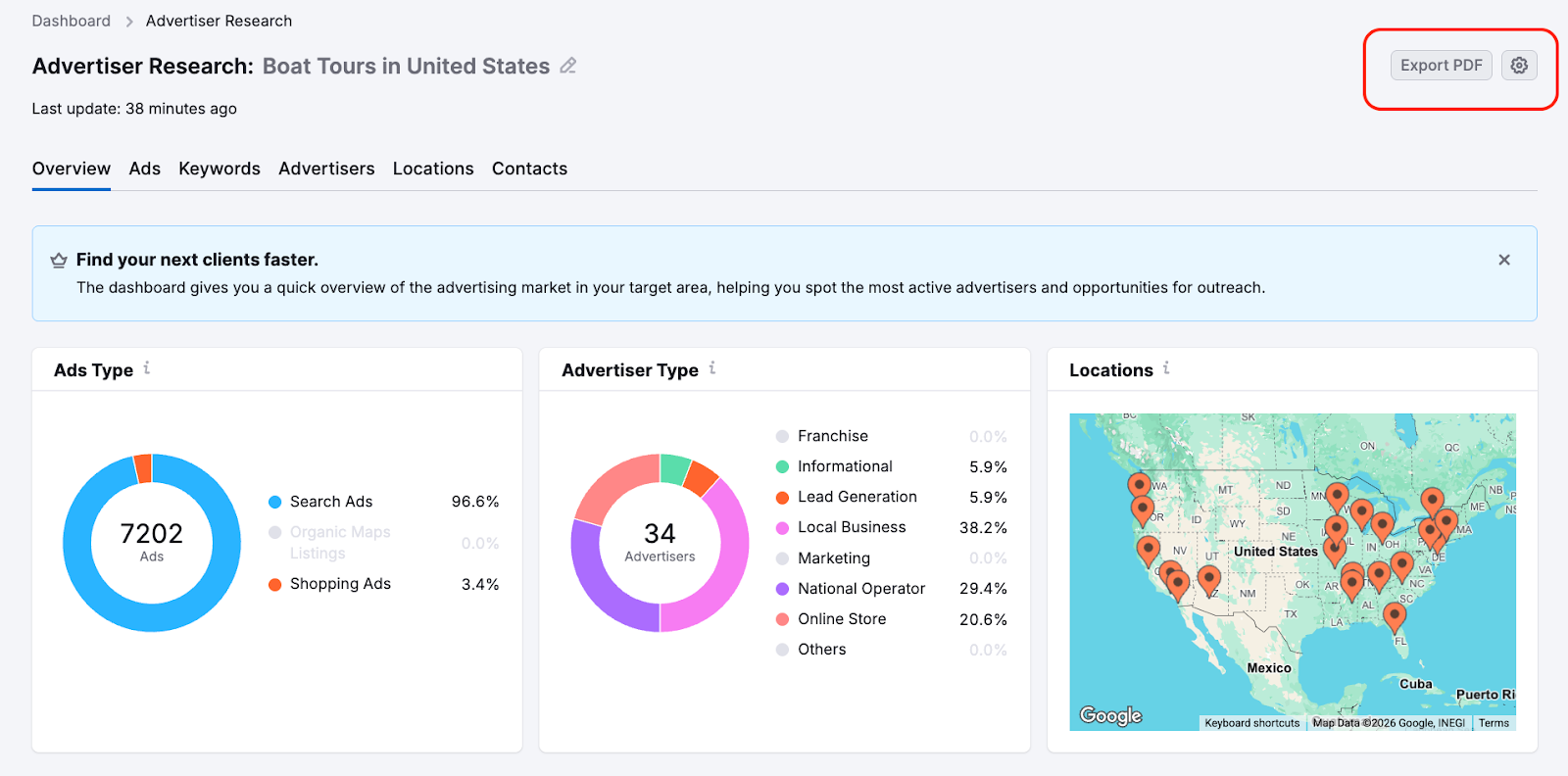
Throughout all the sections and reports of the application (Overview, Ads, Keywords, etc.), you can export data by downloading the PDF report.
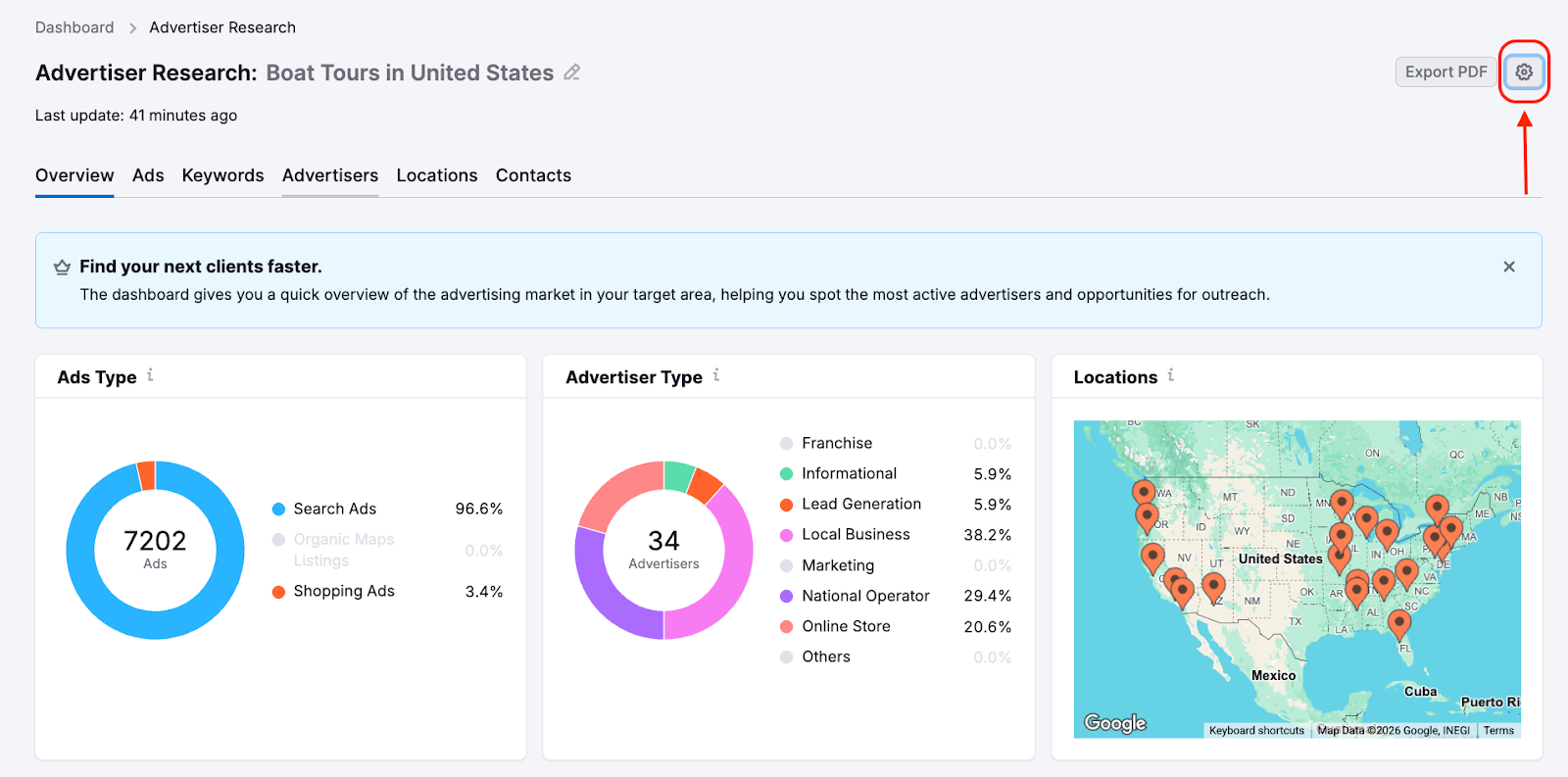
You can also configure how frequently the data is refreshed by clicking on the “Gear” icon.
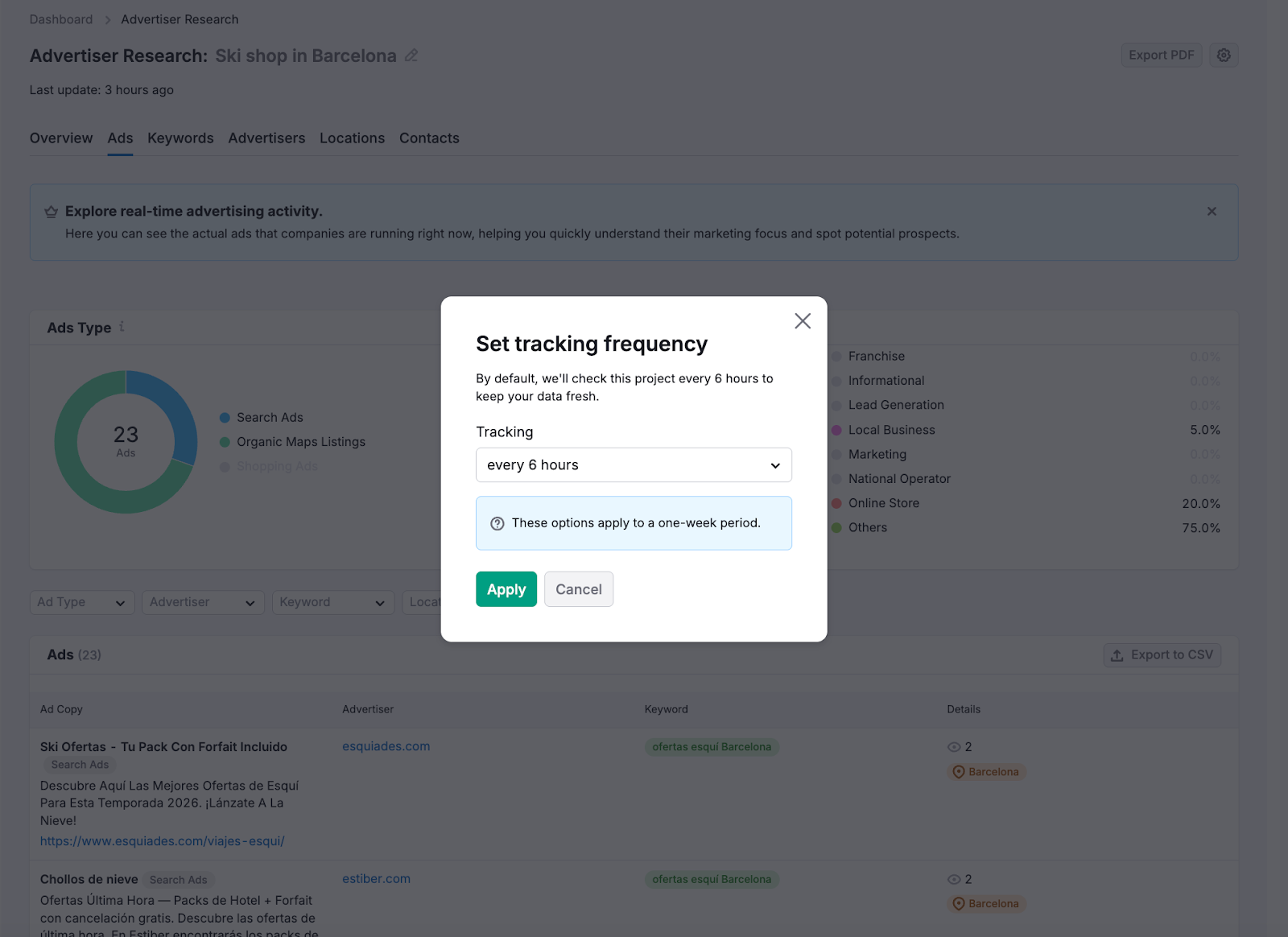
Choose from available options from every 1 to 6 hours and click “Apply”.
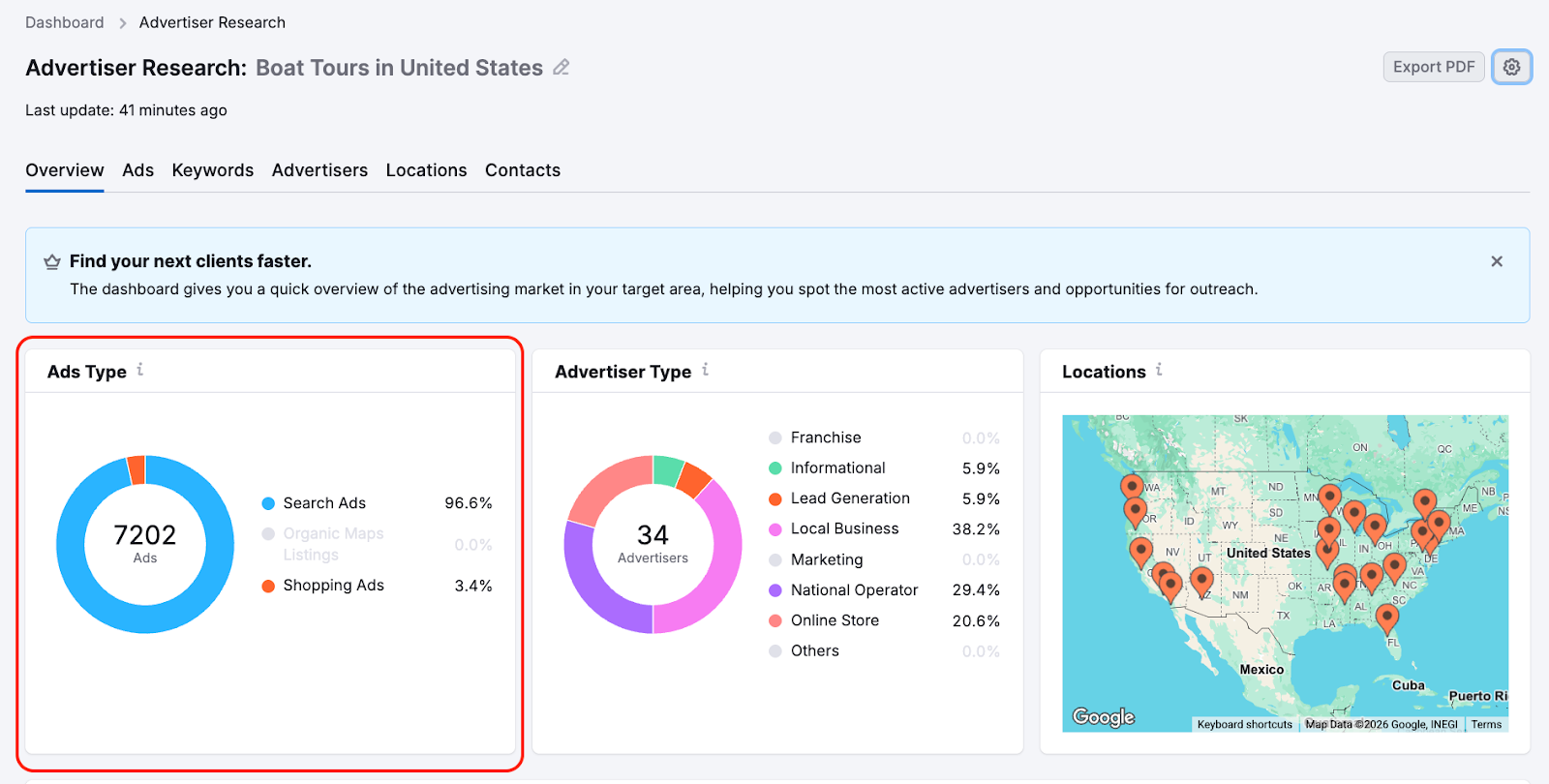
The Ads Type widget shows:
- The total number of detected ads
- How ads are distributed across formats, such as Search Ads, Organic Maps Listings, and Shopping Ads (if available).
Use this widget to understand which ad formats advertisers rely on most in this market.
The Advertiser Type widget categorizes advertisers by business type, such as:
- Local businesses
- Online stores
- National operators
- Other advertiser categories
This helps you understand what types of companies are actively advertising and tailor your outreach accordingly.
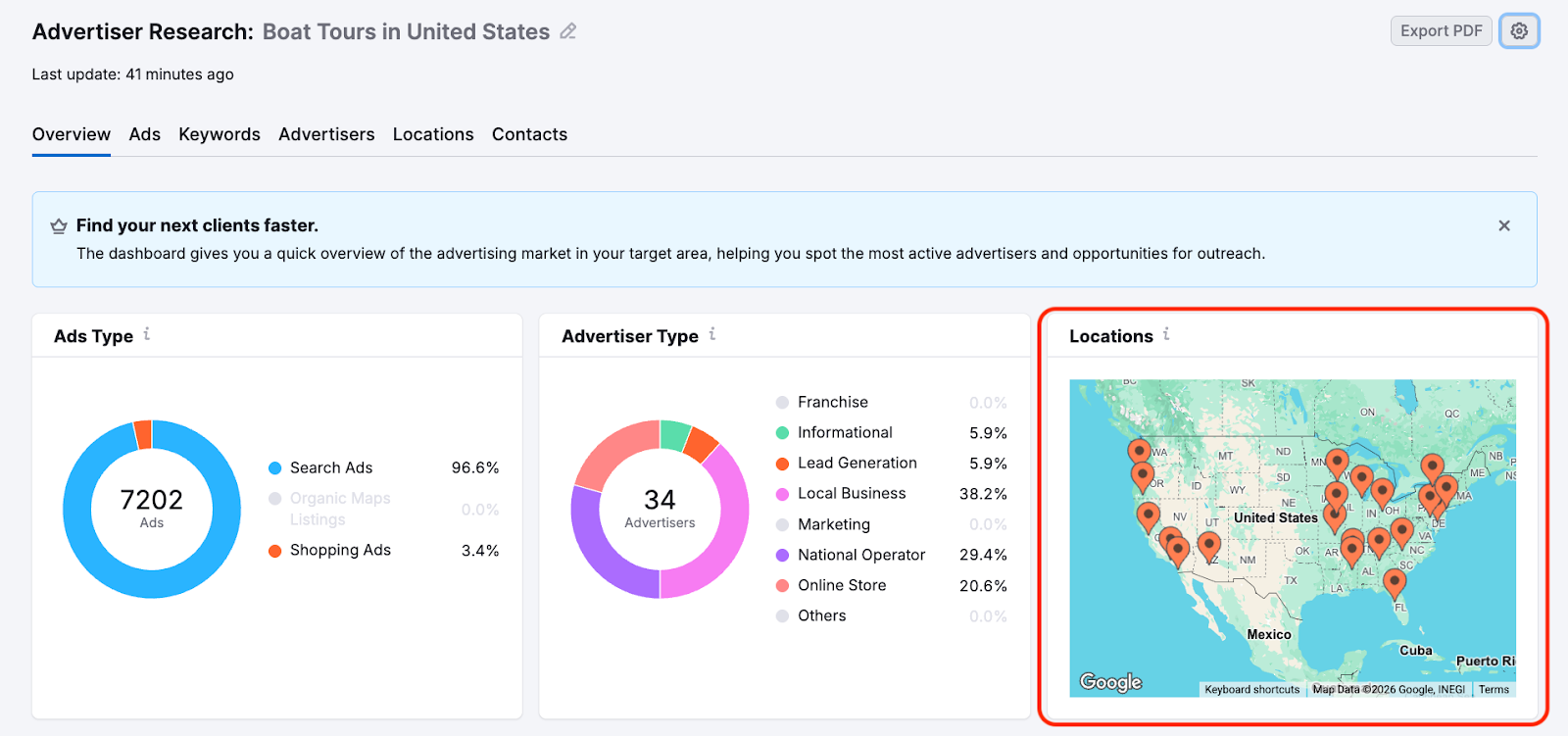
The Locations widget shows where ad activity is concentrated on the map.
Use this widget to:
- Identify geographic focus areas
- Confirm that advertisers are targeting your desired location
- Spot nearby regions with advertising activity
Below the widgets, the Advertisers table lists all detected advertisers in the selected market.
For each advertiser, you can see:
- The advertiser's domain
- The keywords they are targeting
- The Ad Counter, showing how many ads they are running
- Contact Lookup status, indicating whether contact data is available
Use this table to identify the most active advertisers before reviewing ads or contacts.
Step 3: Analyze Live Ads
Go to the Ads section to see the exact search ads advertisers are running right now.
This section helps you:
- Understand what offers and messaging competitors use
- Spot gaps or improvement opportunities
- Prepare personalized outreach based on real ad content
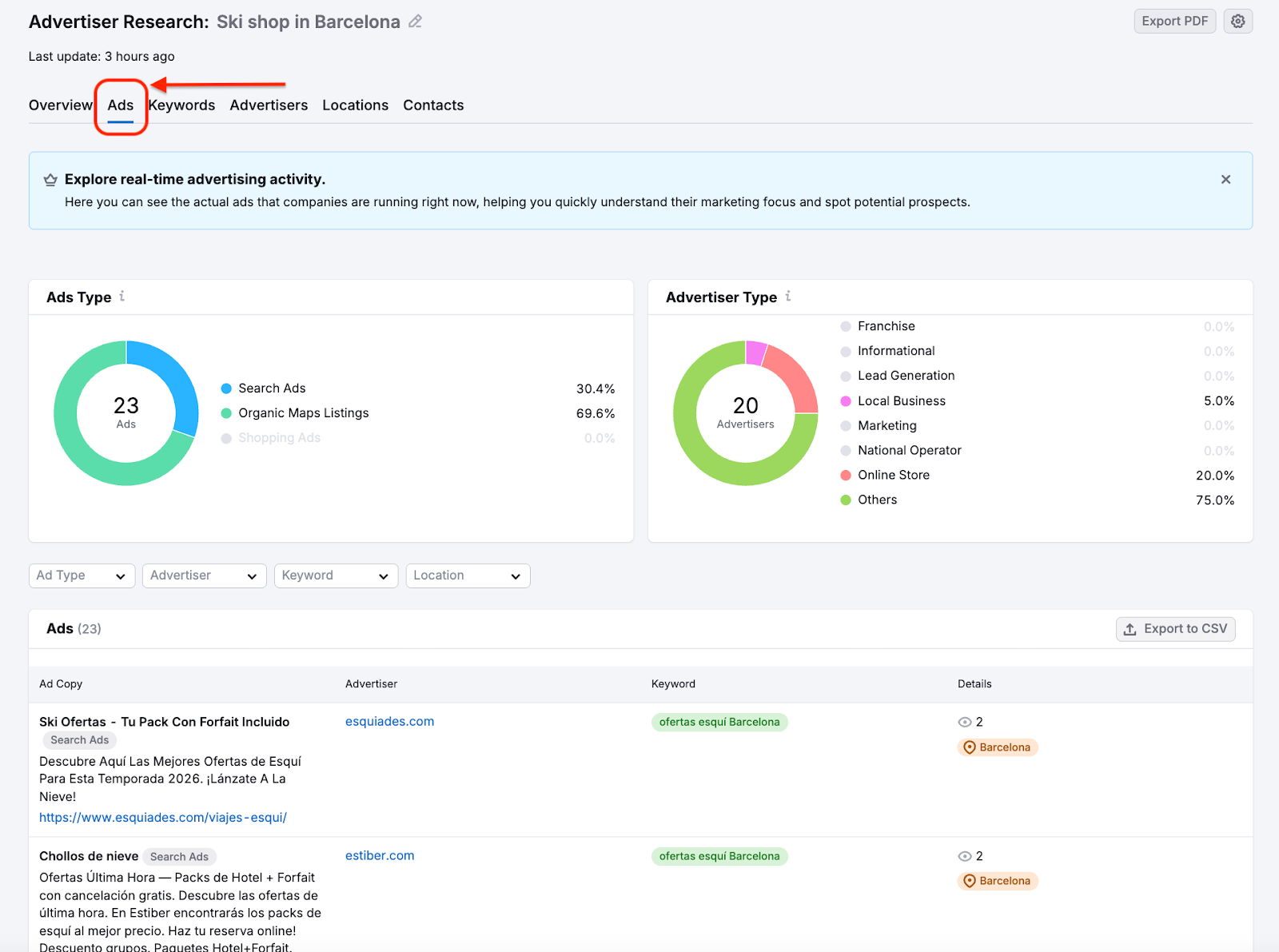
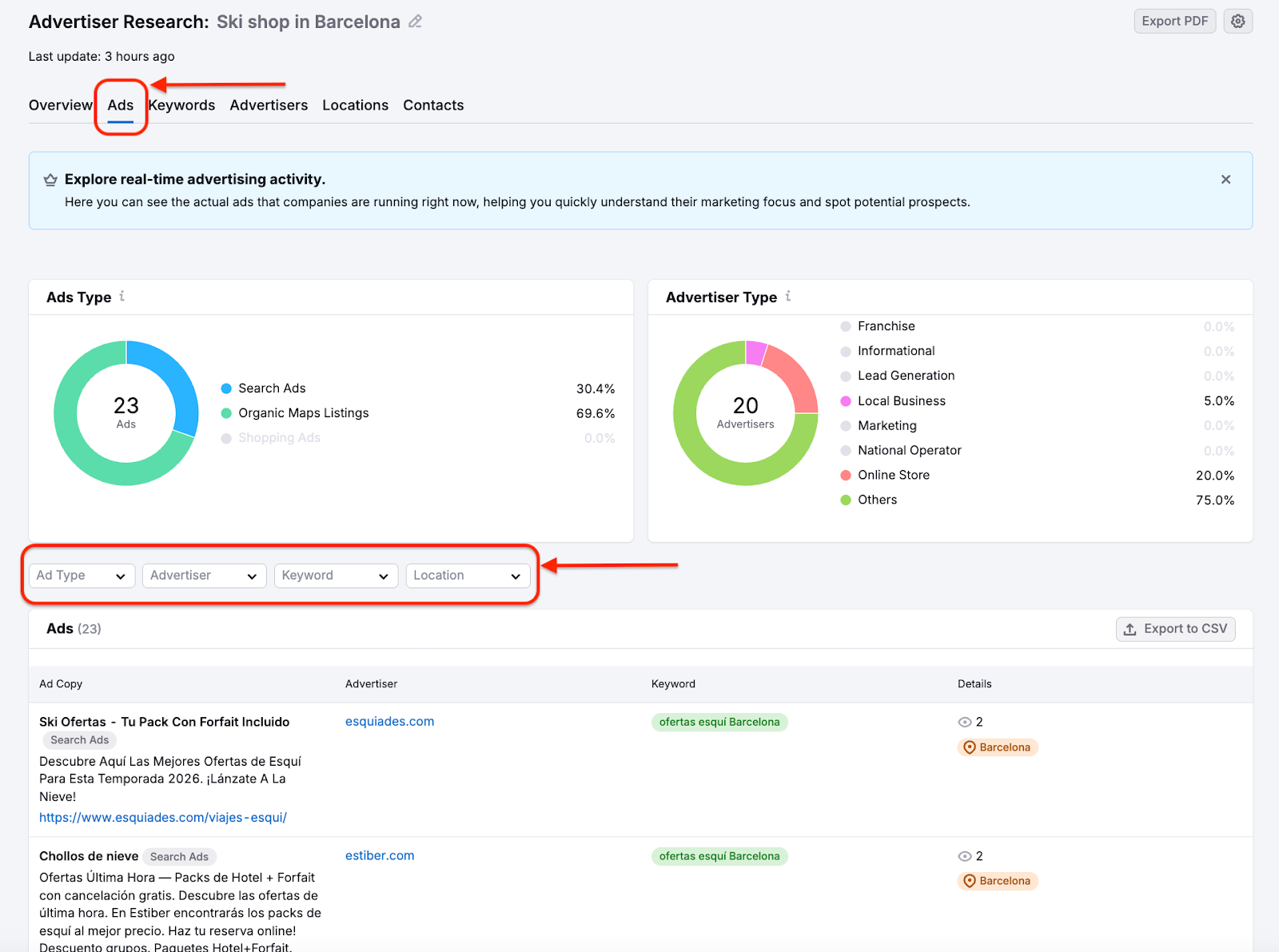
At the top of the page, review the summary widgets to understand overall ad activity:
- The Ads Type widget shows how many ads are detected and how they are split by format (for example, Search Ads or Organic Maps Listings).
- The Advertiser Type widget shows what types of businesses are advertising, such as local businesses or online stores.
Use these widgets to quickly assess market size and the composition of advertisers.
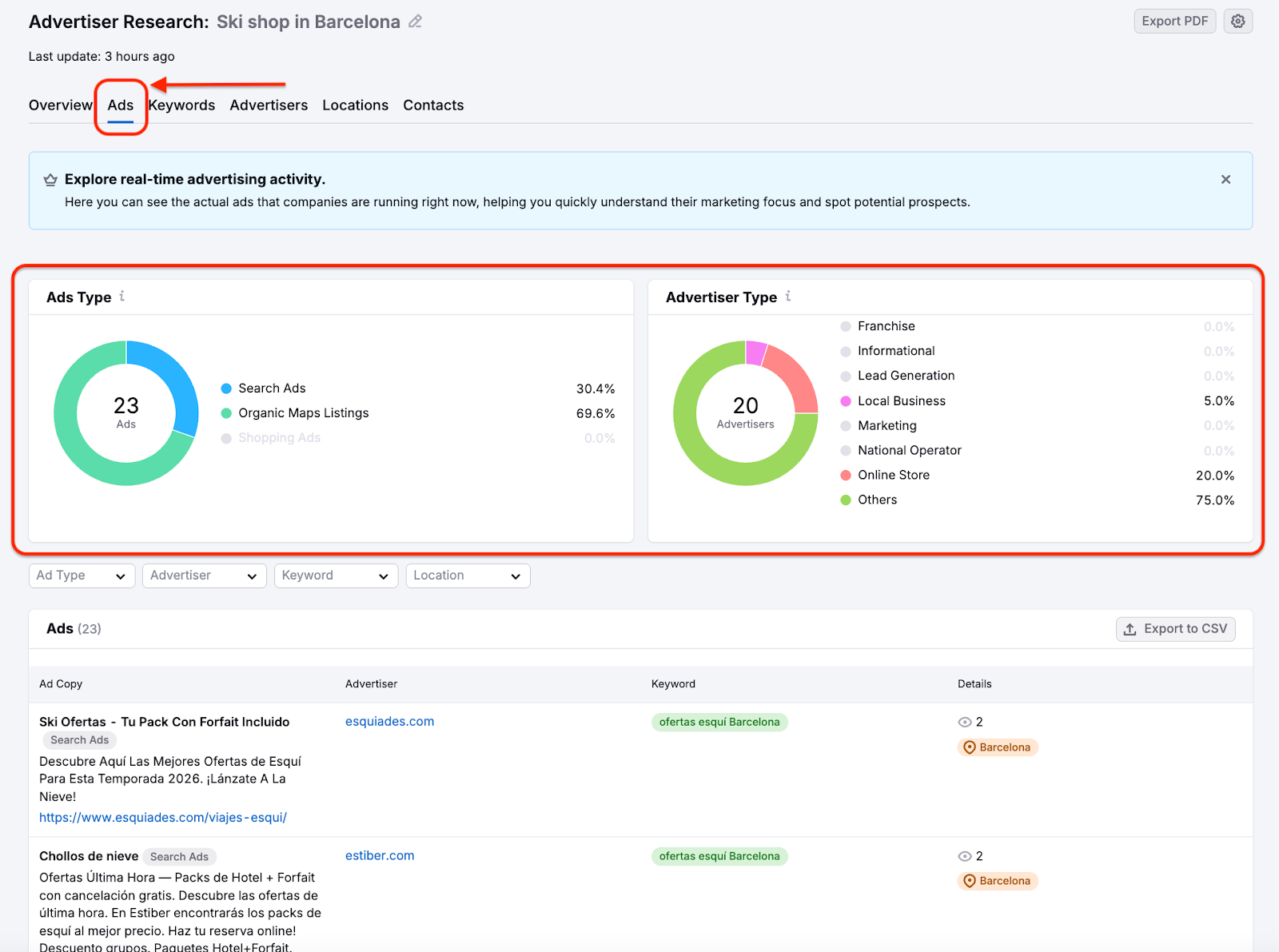
Use the filters above the ads table to refine what you see:
- Ad Type - filter ads by format (Search Ads, Shopping Ads, Organic Maps Listings)
- Advertiser - focus on specific companies that are found within your search keyword
- Keyword - see ads targeting a particular keyword
- Location - review ads shown in specific areas (cities or countries)
Apply filters to focus only on ads that match your target audience or outreach goals.
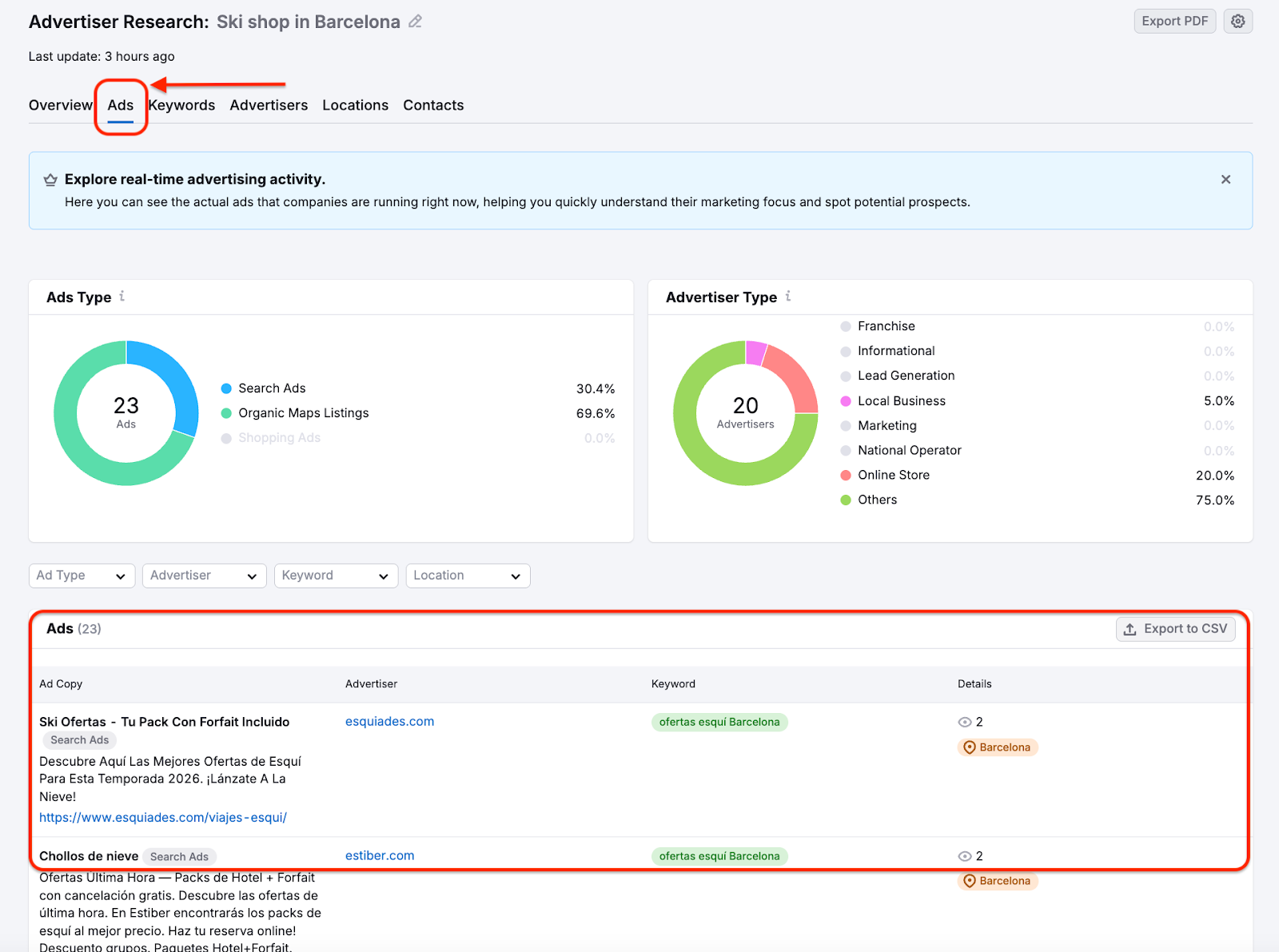
Scroll down to the ads table to see detailed ad data:
- The Ad Copy column shows the full text of each live ad.
- The Advertiser column shows the company running the ad.
- The Keyword column shows what the advertiser is targeting.
- The Details column shows additional information, such as ad variations and target locations.
Use this information to understand advertiser messaging and offers before reaching out.
Use all of the above information to identify high-intent prospects that
- Appear multiple times
- Run several ad variations
- Target relevant keywords and locations
These signals can help you prioritize companies that are actively investing in ads.
Step 4: Explore Keywords
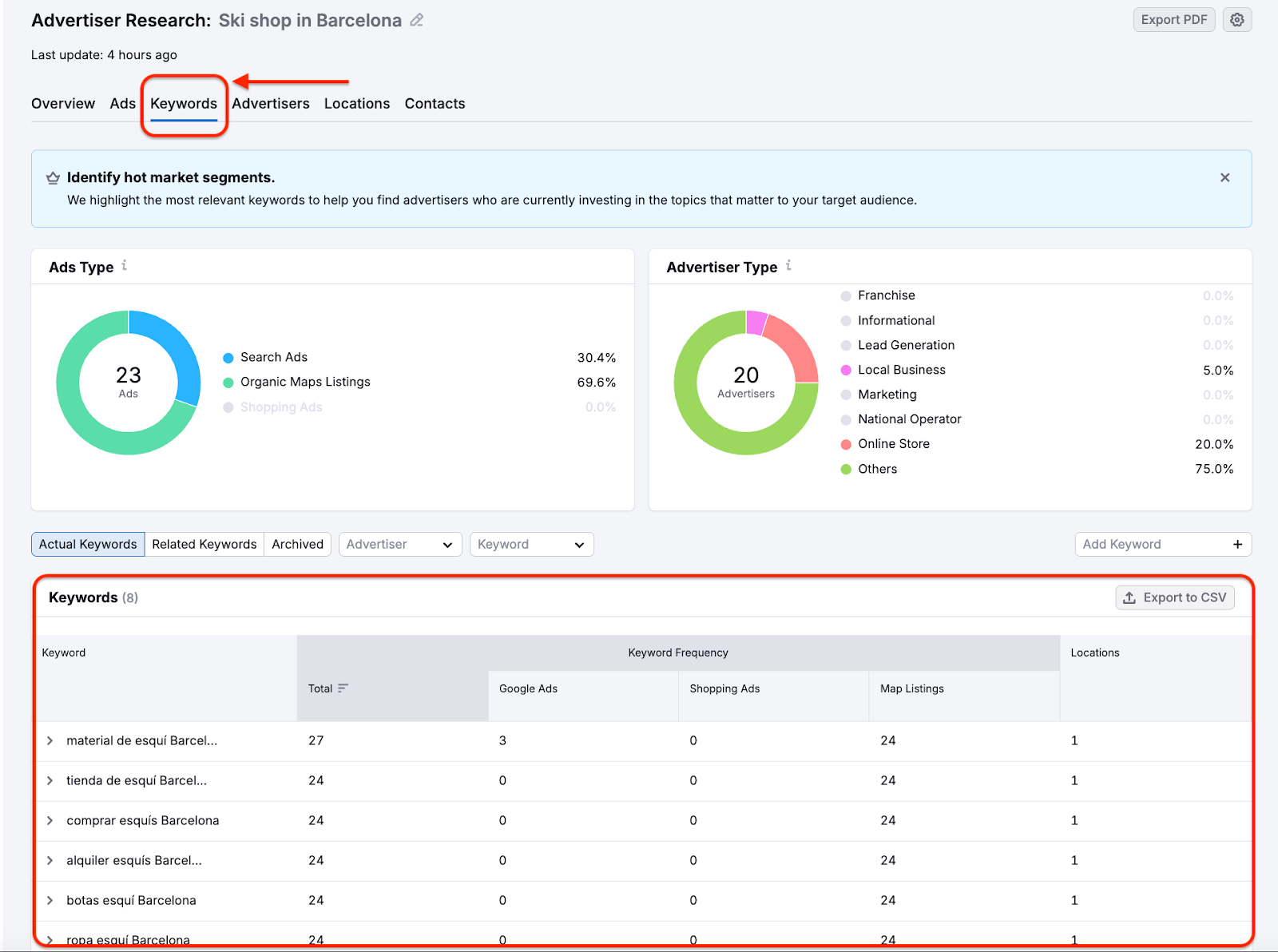
Open the Keywords tab to see which keywords advertisers are actively bidding on.
This section helps you:
- Identify high-intent market segments
- Discover new angles for prospecting
- Focus on advertisers investing in topics relevant to your services
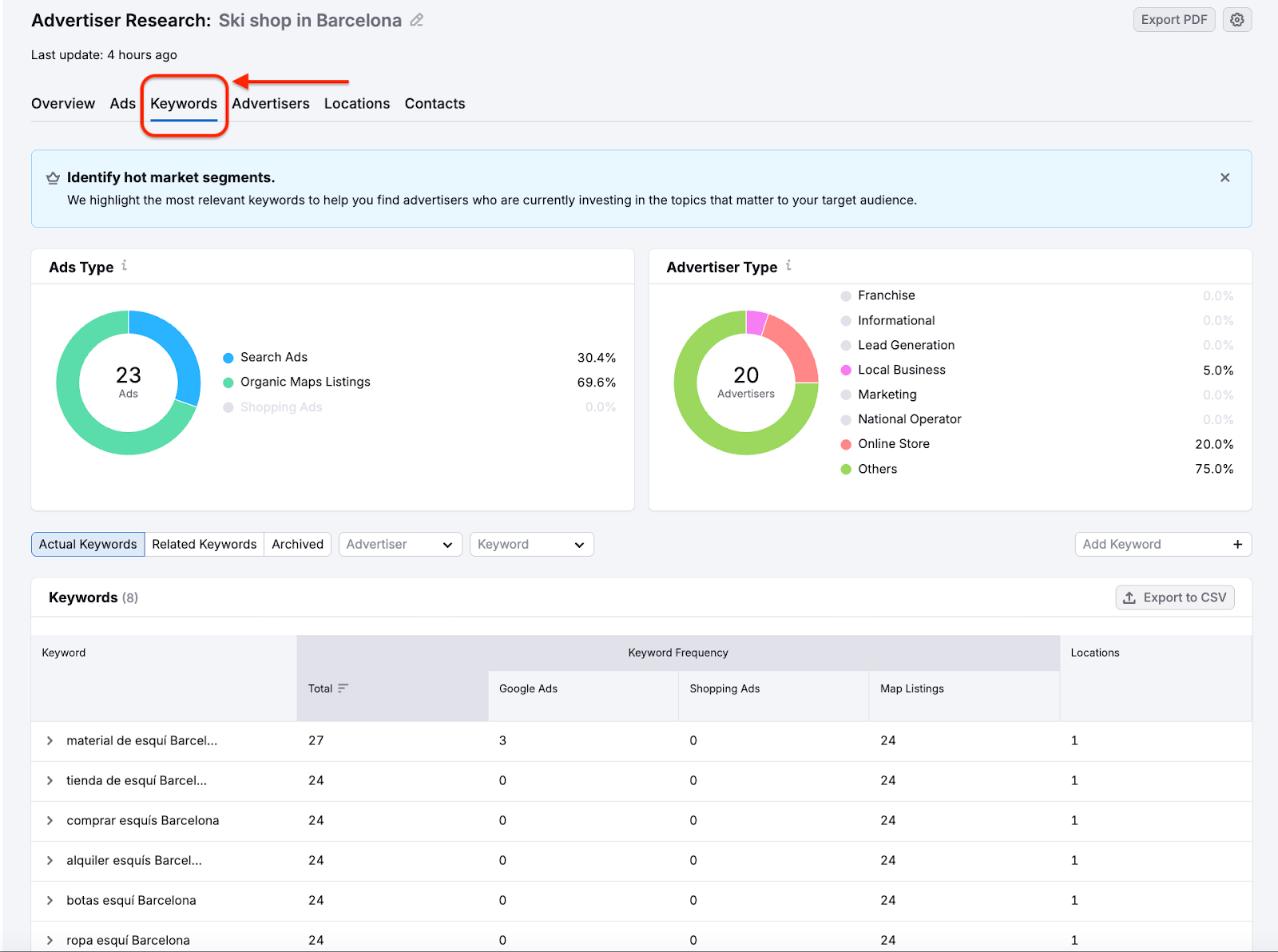
Above the keywords table, select how keywords are grouped:
- Actual Keywords - keywords advertisers are currently bidding on
- Related Keywords - additional relevant keywords connected to your topic
- Archived - keywords saved for reference
Use Actual Keywords to focus on active demand, and Related Keywords to expand your prospecting scope.
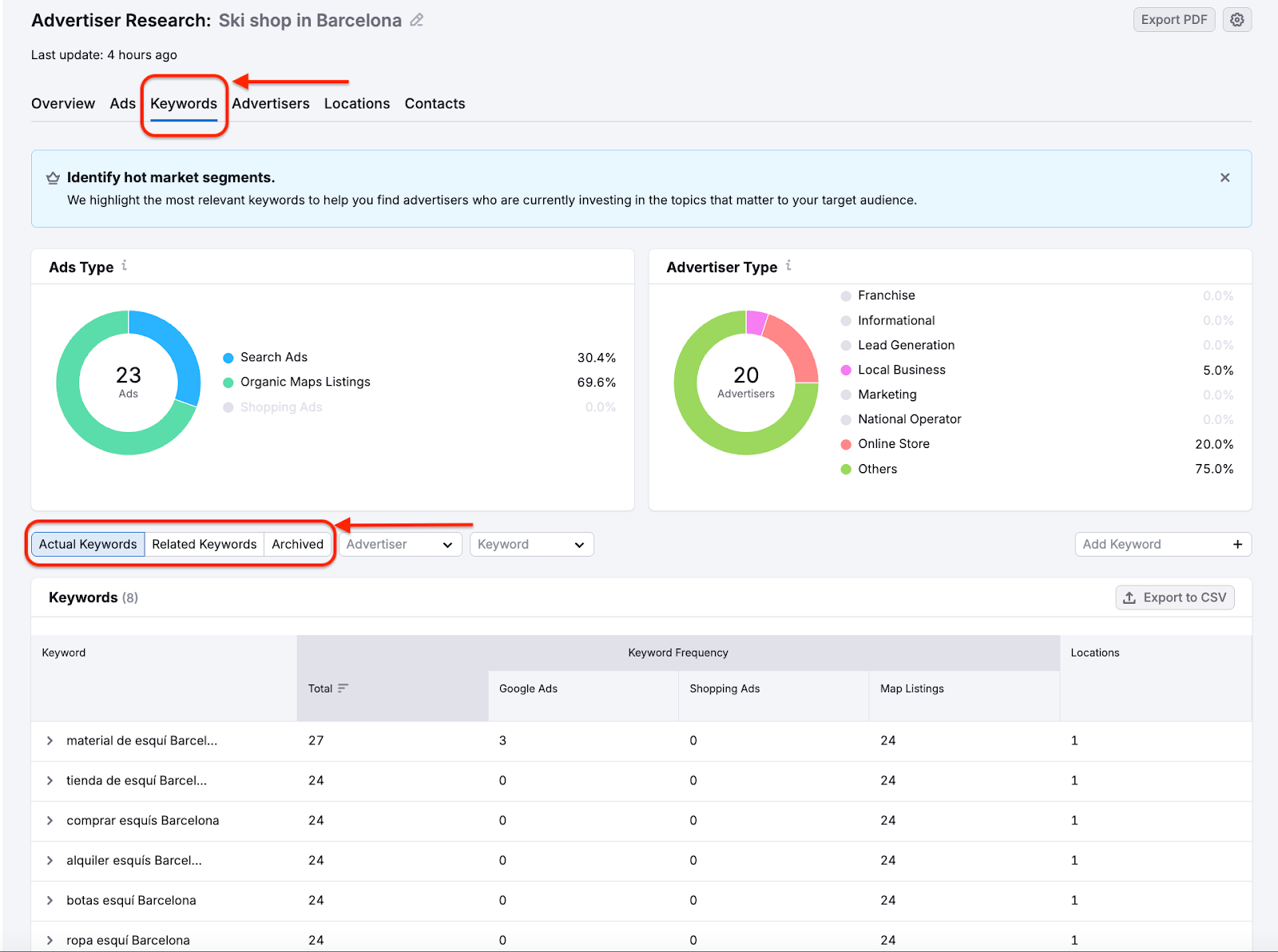
Use the filters above the table to refine results:
- Advertiser - see keywords used by specific companies
- Keyword - focus on specific search terms
These filters help you narrow the list to keywords that match your services or outreach goals.
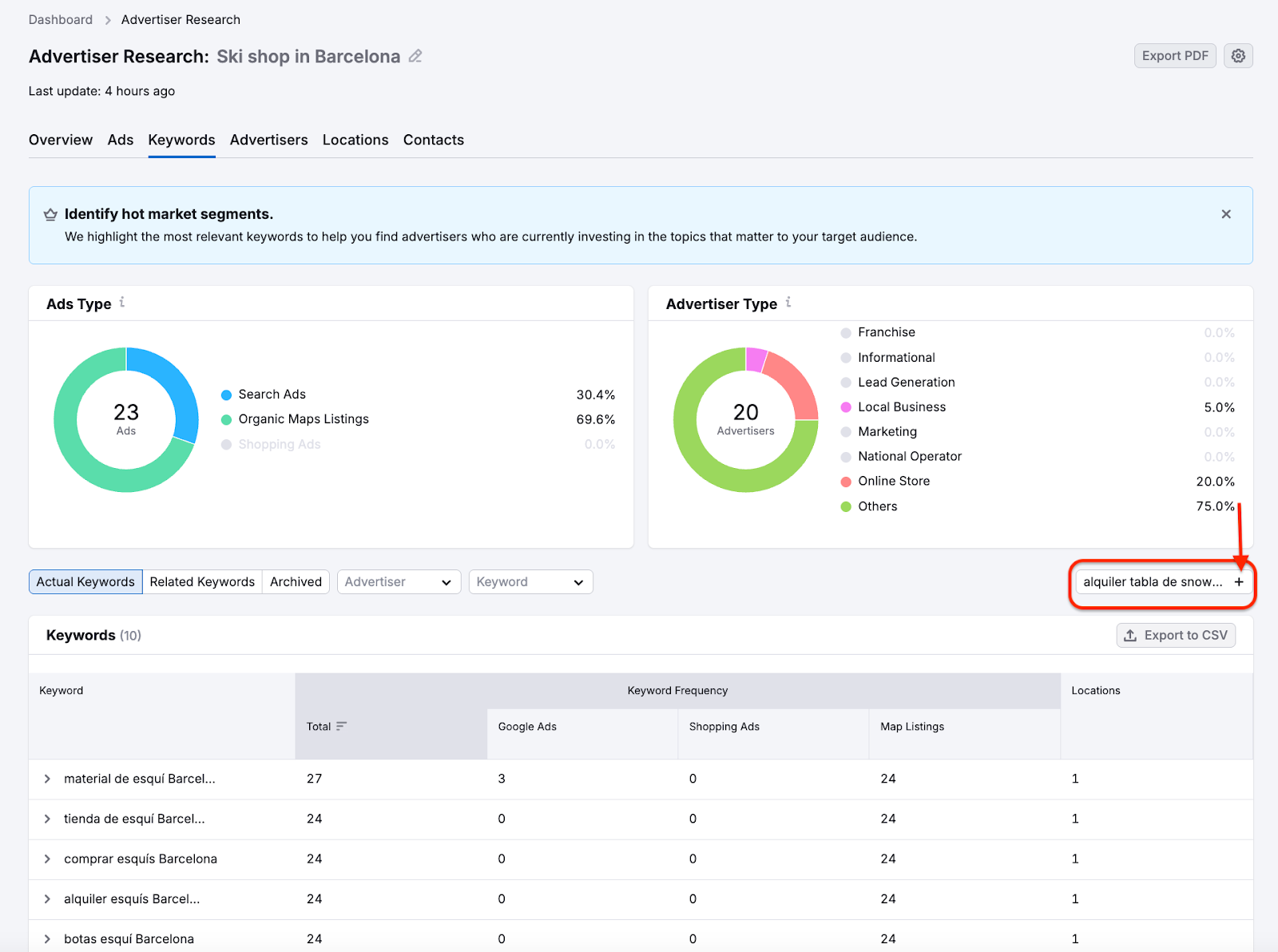
You can also add your own keywords to track additional terms relevant to your market.
Start by typing in the keyword in the “Add Keyword” field and clicking the “+” sign.
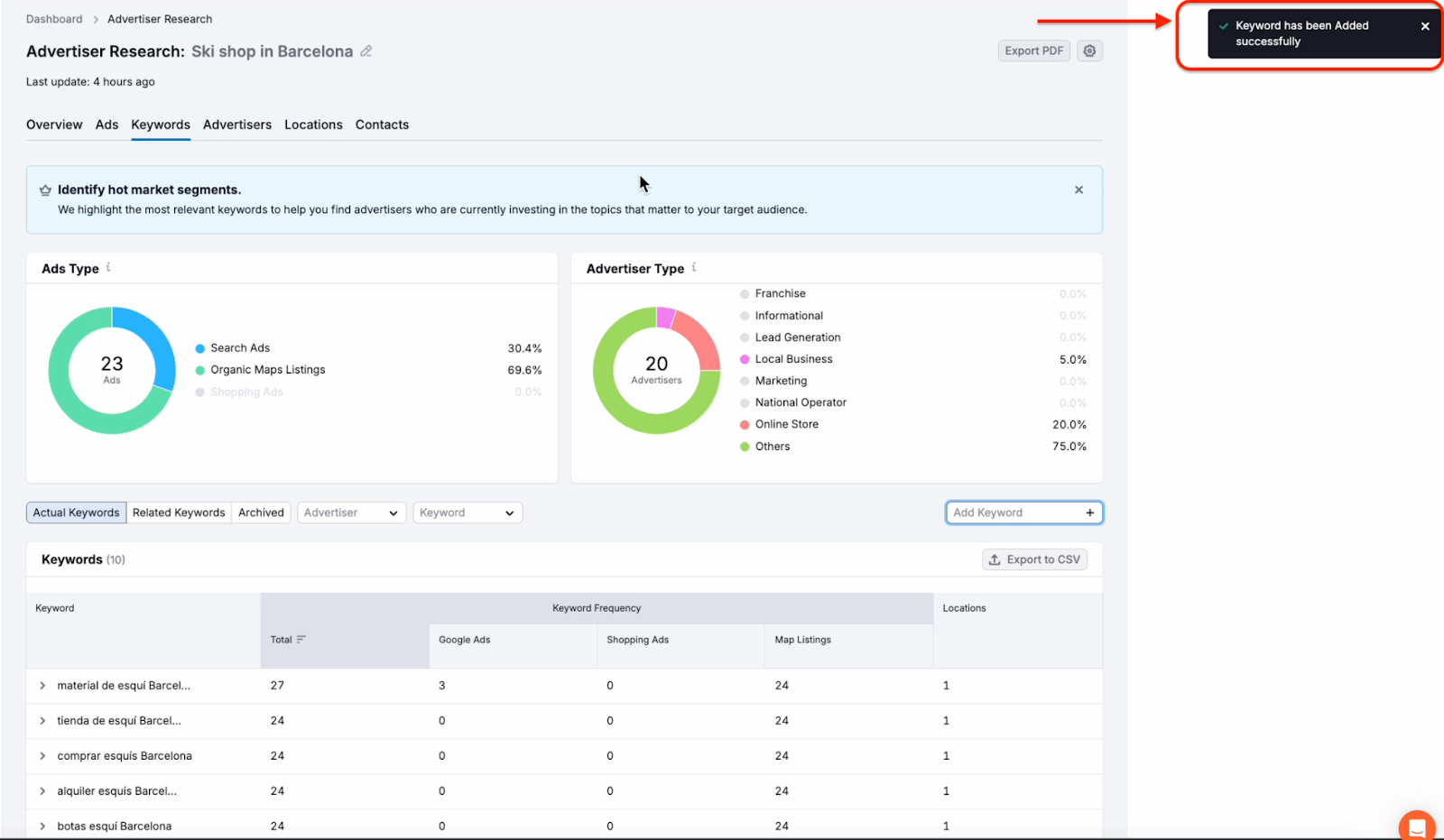
Upon success, you will see this message in the top-right corner.
The keywords table shows how often each keyword appears across ad formats:
- Total - total number of ads using the keyword
- Google Ads - keyword usage in search ads
- Shopping Ads - keyword usage in shopping campaigns
- Map Listings - keyword usage in local map ads
In the Locations column, see how many locations each keyword is associated with.
Keywords appearing across multiple locations often indicate broader demand and scalable opportunities.
Use this data to identify keywords with consistent advertiser investment.
Step 5: View Advertisers
In the Advertisers section, you’ll find a full list of companies running live ads. This will help you prioritize prospects based on activity level and relevance.
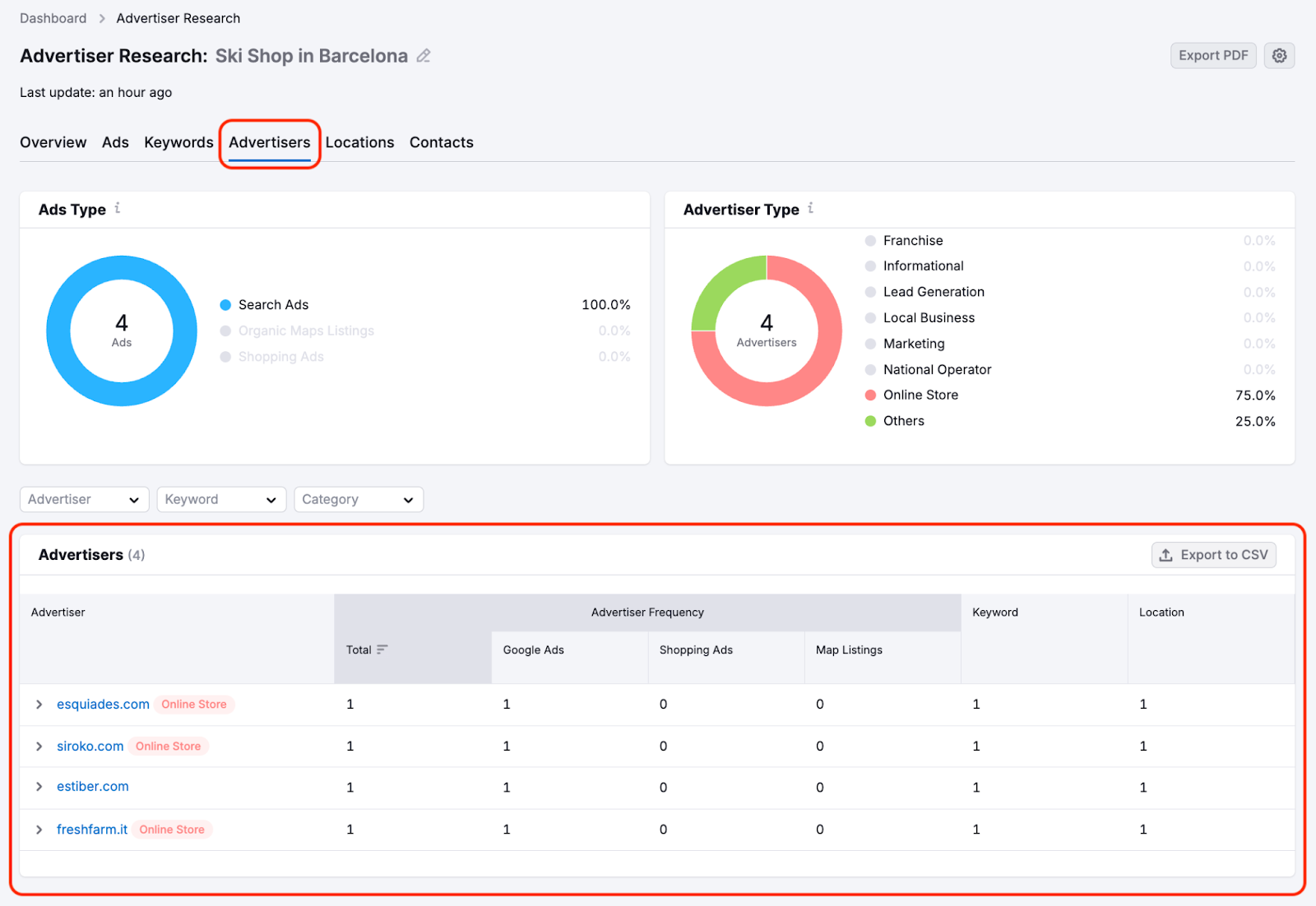
For each advertiser, you can see:
- Campaign intensity
- Target locations
- Business details
Step 6: Analyze Locations
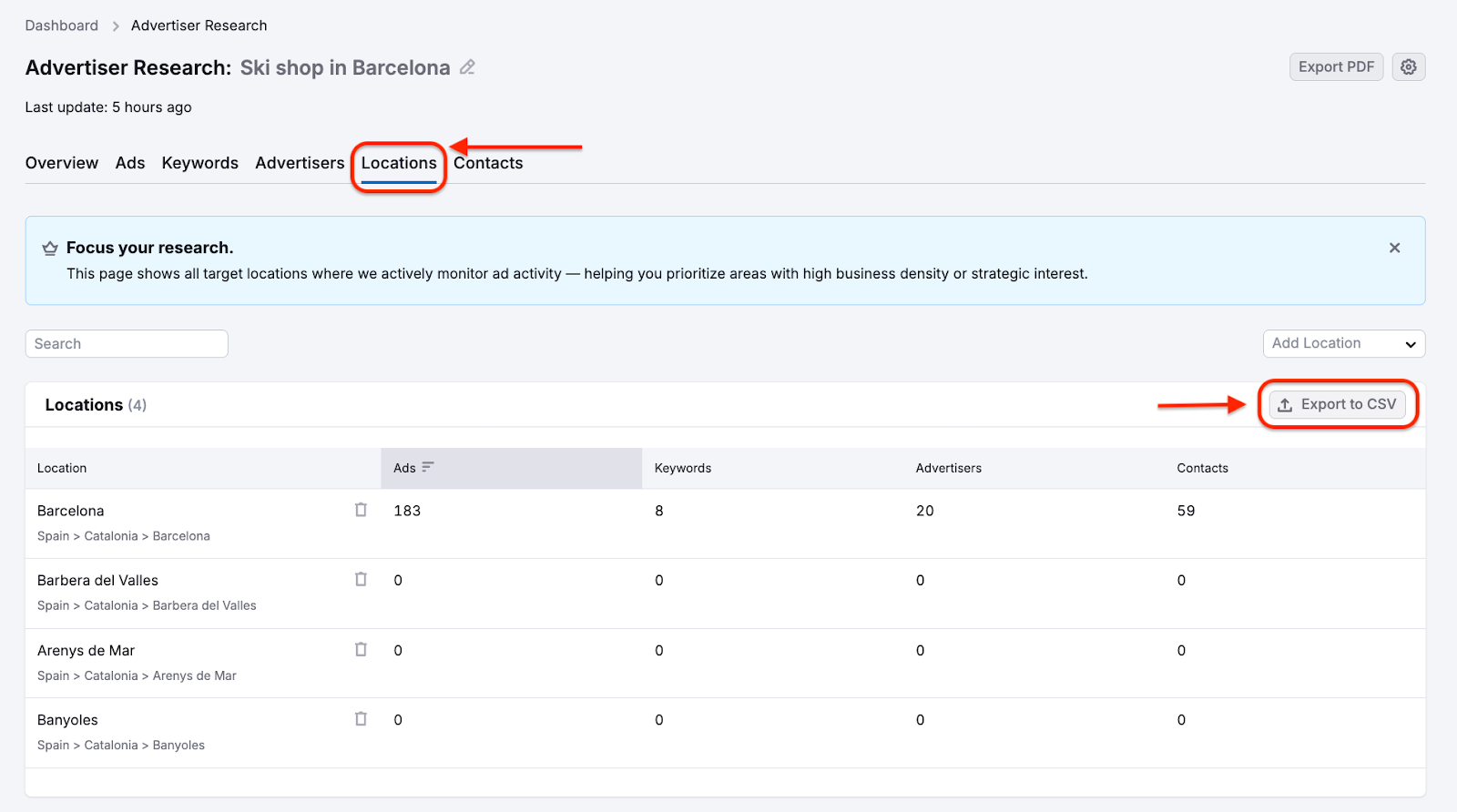
Use the Locations tab to understand where ad activity is concentrated.
This view shows:
- All monitored locations
- Areas with high advertiser density
- Regional opportunities for outreach
This is especially useful if you sell location-specific services.
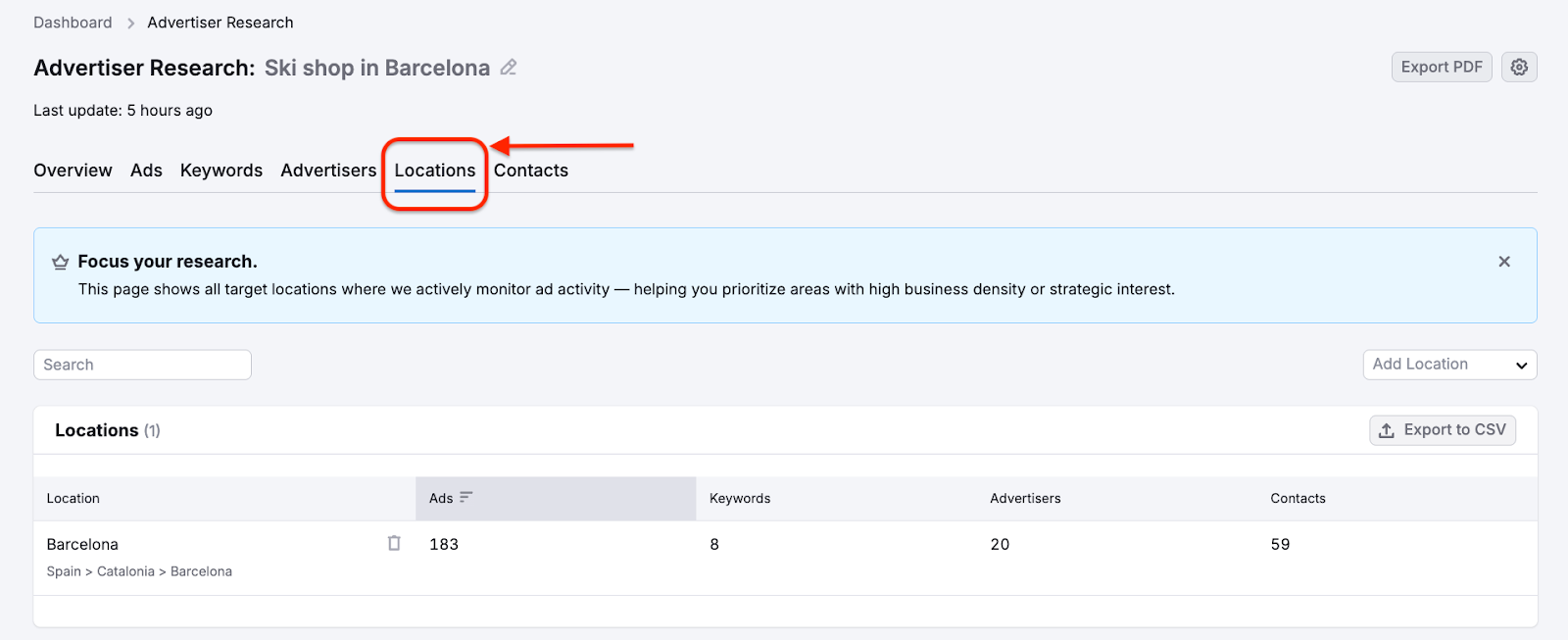
The locations table shows a breakdown of ad activity by geographic area. For each location, you can see:
- Ads - the total number of ads detected in that location
- Keywords - how many keywords advertisers are bidding on
- Advertisers - the number of companies running ads
- Contacts - the number of available contact records
Use these metrics to identify locations with high advertiser density and outreach potential.
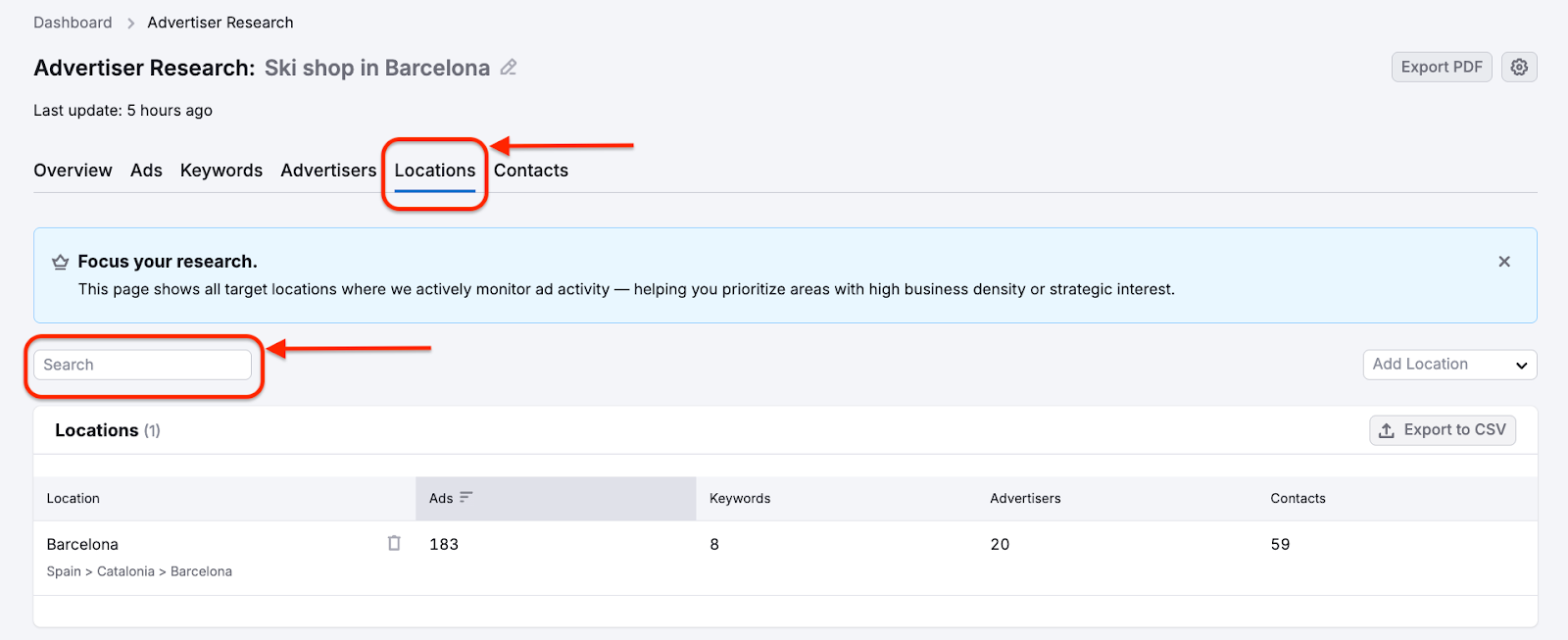
Use the Search field to quickly find a specific city, region, or country in your results.
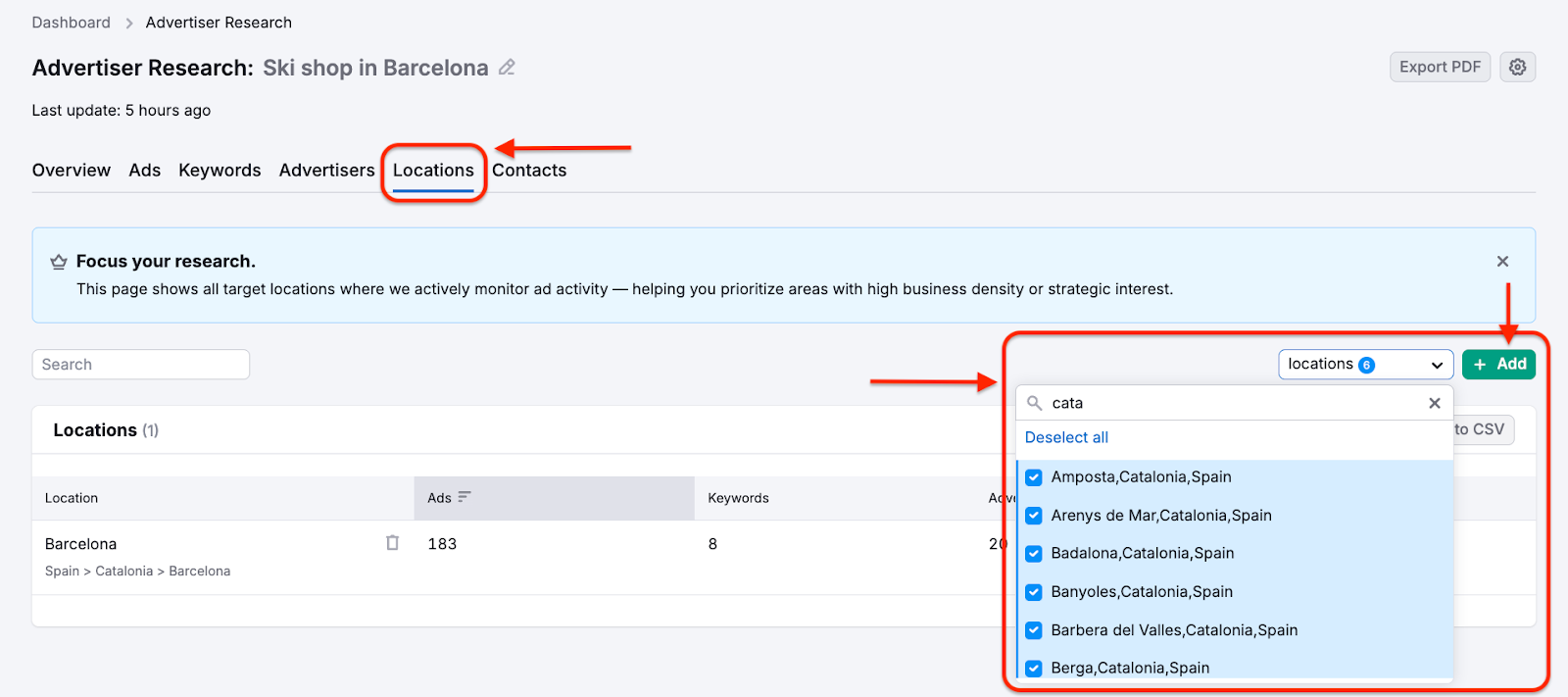
Click Add Location to include additional locations and expand your research coverage.
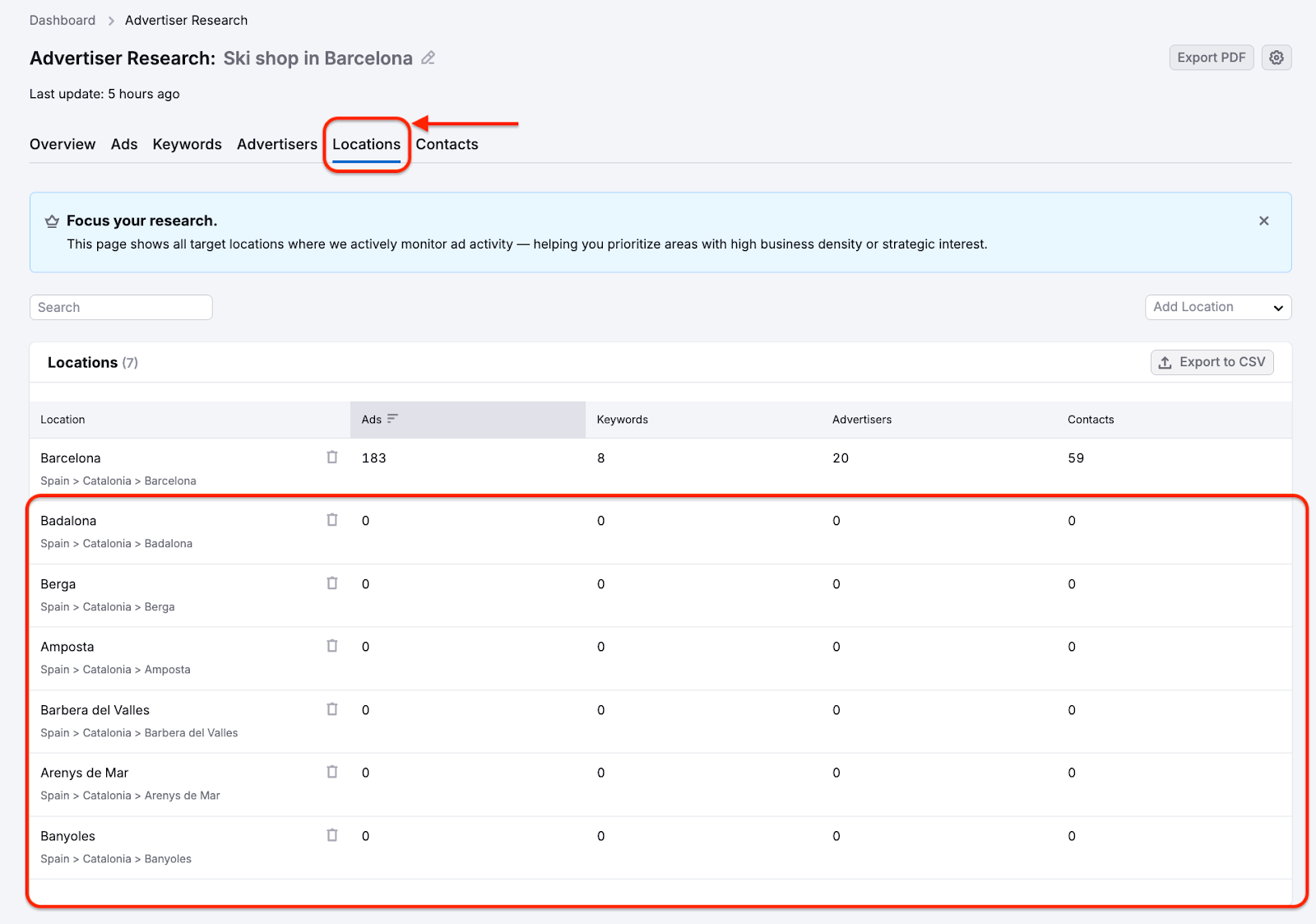
After that, you will see new locations and their corresponding results in the location list.
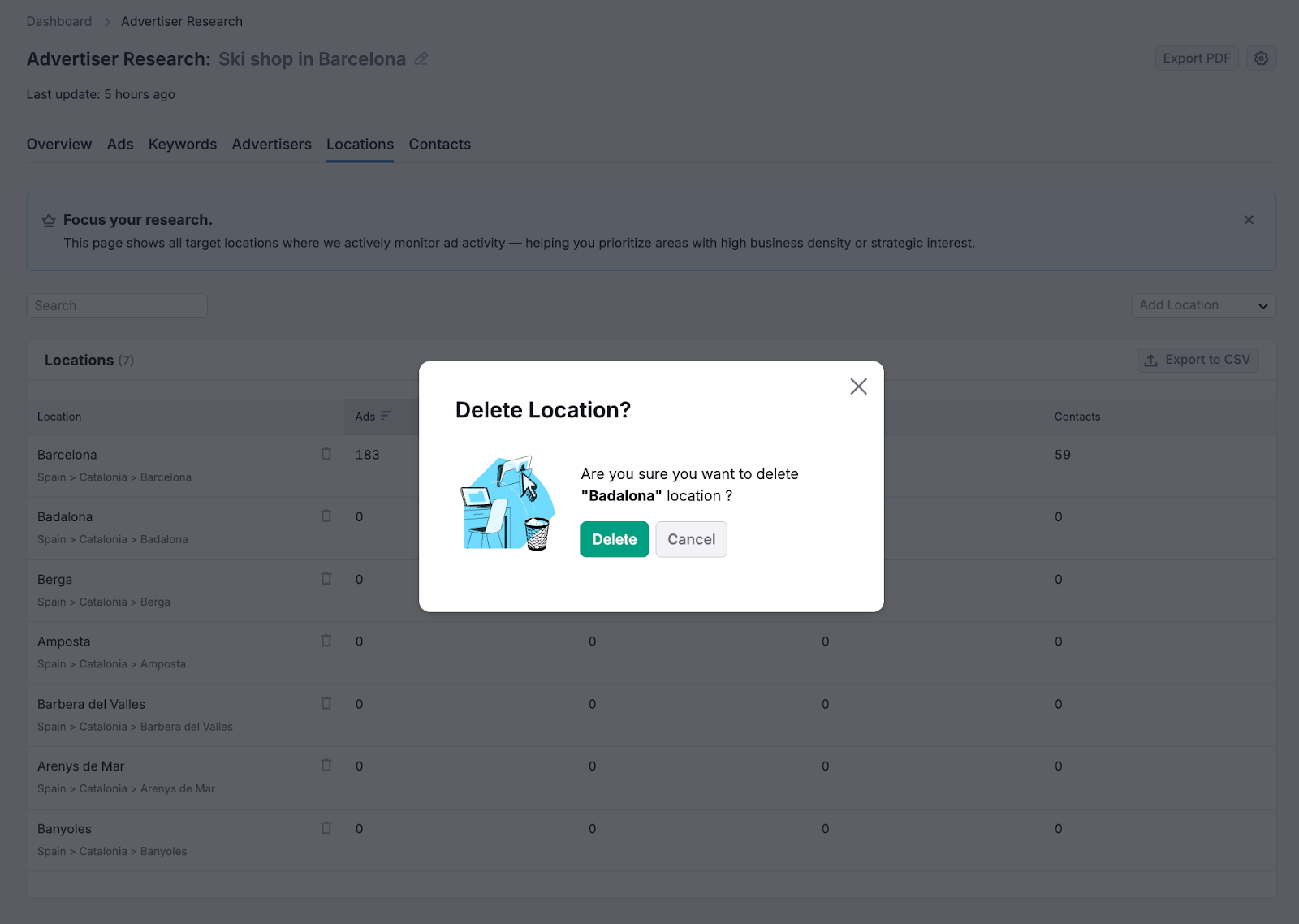
You can always delete a location by clicking the bin icon next to it. After that, you will get the confirmation step.
Click Export to CSV to download location-level data for Internal analysis, team collaboration, and planning region-specific outreach campaigns.
Step 7: Find Contact Information
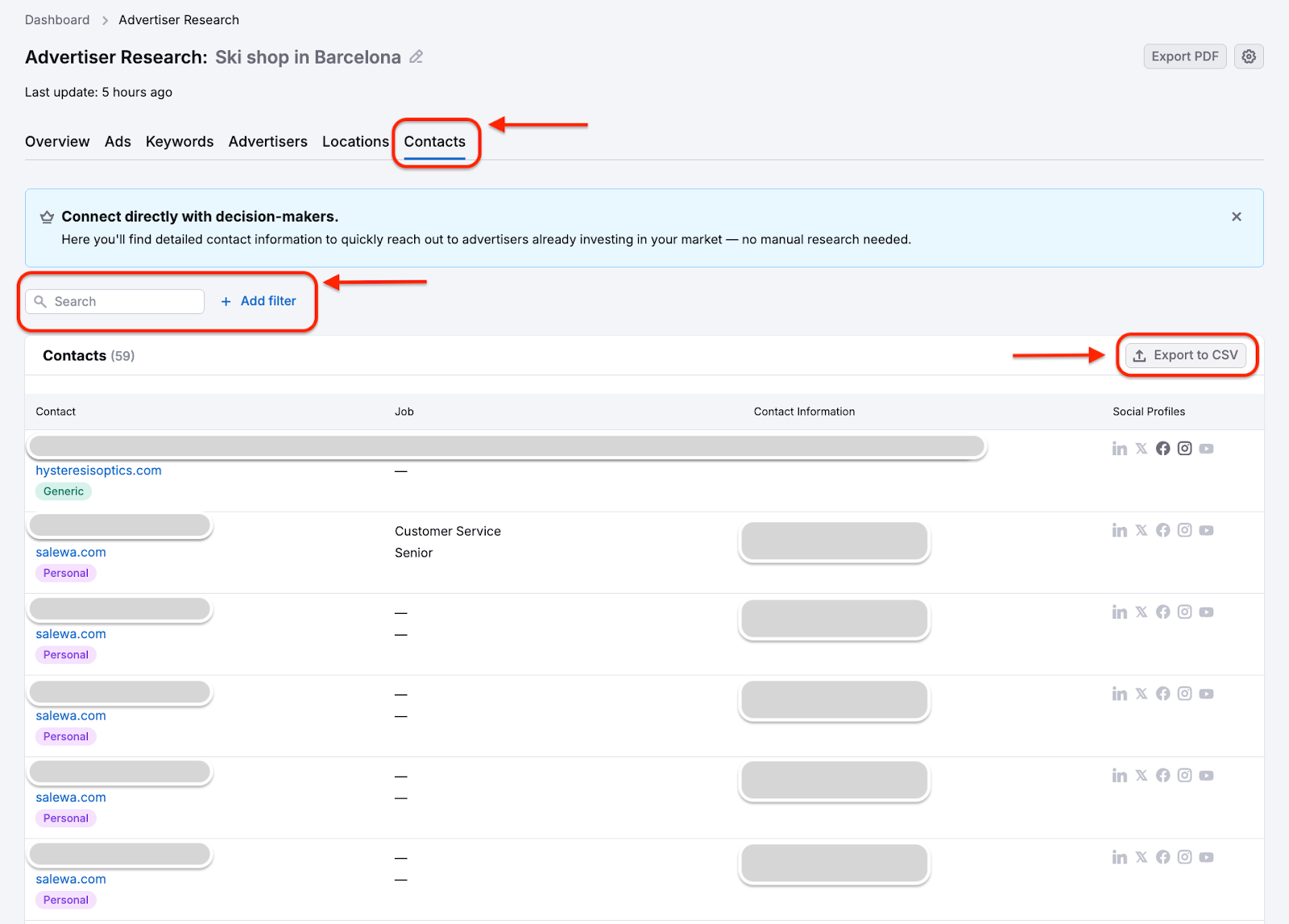
Open the Contacts section to access available contact details for advertisers.
Here you can:
- Find emails and decision-makers (when available)
- Skip manual research and data enrichment
- Prepare outreach faster
- Export contact data and start contacting advertisers already investing in ads.
Use the Search field to quickly find contacts by name, company, or domain.
Click Add filter to refine the list based on available attributes, such as:
- Seniority Level
- Social Media presence
- Type
Each row in the contacts table includes:
- Contact - the person’s name or a generic contact record linked to the advertiser’s domain
- Job - the role or position, when available
- Contact Information - email address and phone number (if available)
- Social Profiles - links to public social profiles for additional context
Click Export to CSV to download the contacts list and later import it into your CRM or start outreach campaigns immediately.
Frequently Asked Questions
What advertising platforms does PPC Lead Intelligence track?
PPC Lead Intelligence detects companies running ads on Google, Google Maps, and Google Search Partner Network.
Is the advertiser data real-time or historical?
The data is real-time. PPC Lead Intelligence scans the web continuously and shows companies that are actively running ads at the moment of your search.
Can I see which keywords advertisers are bidding on?
Yes. The Keywords section highlights relevant keywords advertisers are actively investing in, helping you identify high-intent market segments.
Can I filter advertisers by location?
Yes. You can explore advertisers by geographic location (city, region, country) and review ad activity in specific regions using the Locations section.
Can I export advertiser and contact data?
Yes. PPC Lead Intelligence provides export-ready lead lists in CSV format so you can download and use the data for outreach or CRM import.
Does PPC Lead Intelligence provide a free trial period?
No, the app does not have a free trial period
How often is the data updated?
The data is updated continuously as the app detects live advertising activity. You’ll also see the last update timestamp in the market overview.