How to Disconnect your Social Media Accounts from Semrush
If you want to disconnect, remove, or unlink a social media account from Semrush, you can do it in just a few steps.
This guide is relevant if you:
- connected the wrong social media account
- want to remove a social media profile from Semrush
- need to unlink Instagram, Facebook, LinkedIn, or other accounts
- want to stop tracking a social media account
- are troubleshooting a connection issue
How to remove a social media account from Social Poster
To disconnect or remove a connected social media profile:
- Go to your Social Poster campaign.
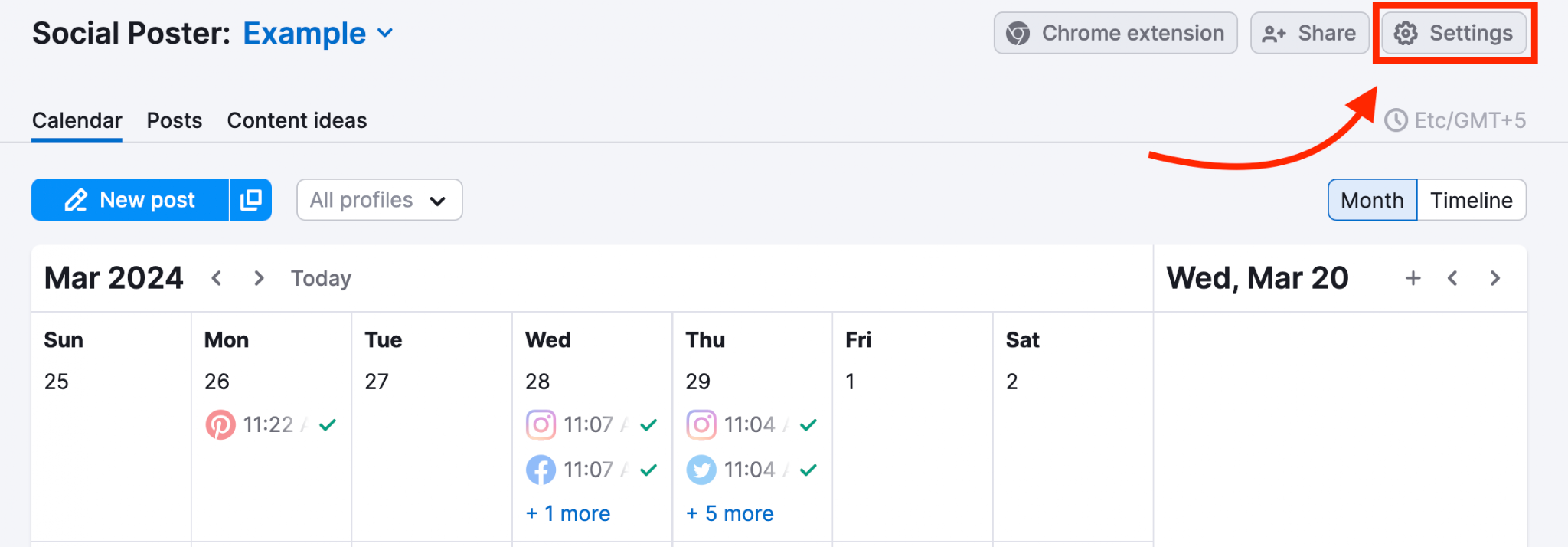
- In the Settings in the top right corner, find “Profiles.”
- Find the profile you want to remove.
- Click the bin icon next to the profile.
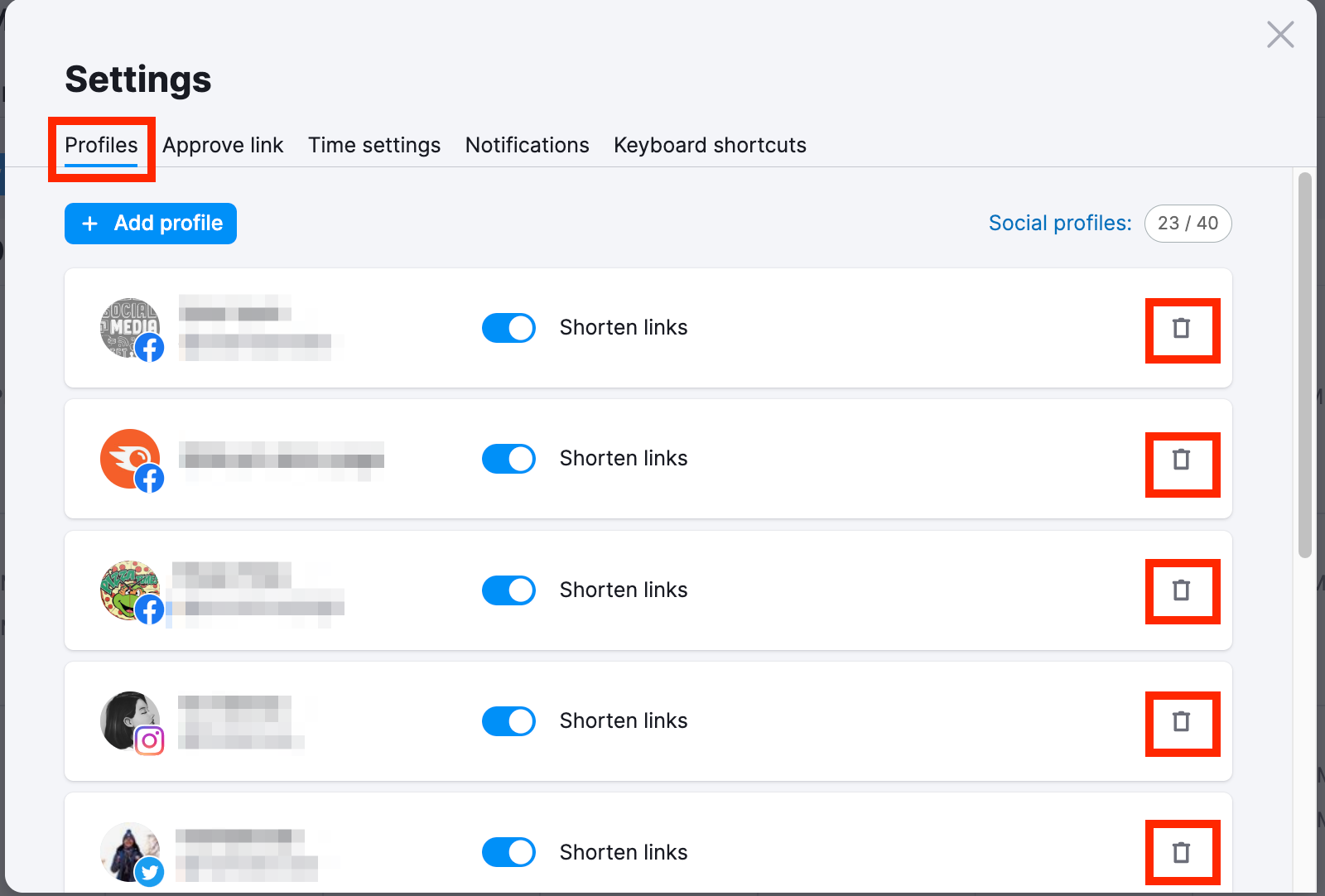
This will remove or unlink the social media account from Social Poster.
How to fully remove Semrush access from your social media accounts
If you want to completely remove Semrush’s access to your social media account:
- Open your social media platform settings
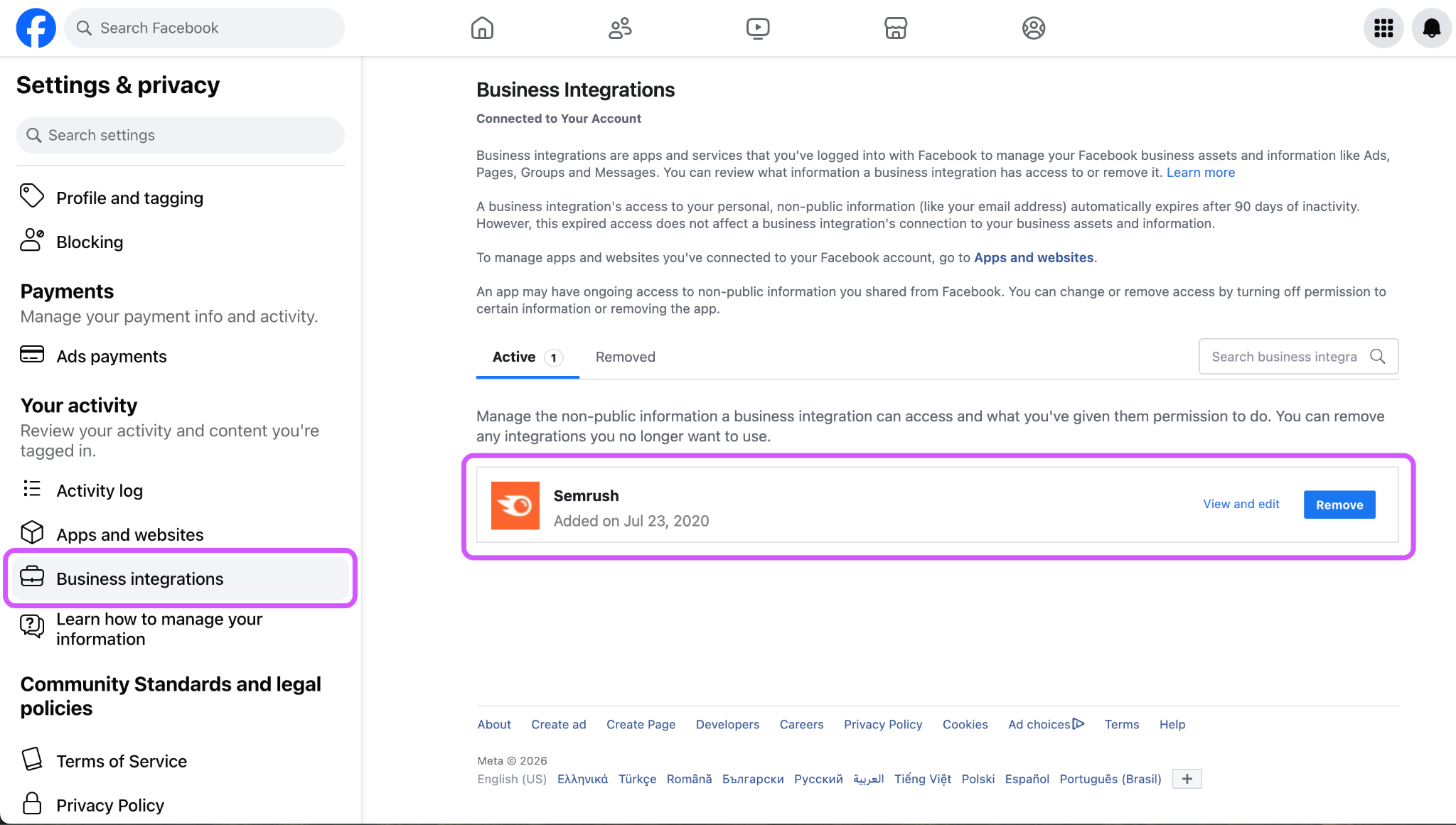
- Go to Business Integrations or Connected Apps
- Find Semrush in the list
- Click Remove or Revoke access
This fully disconnects your account and prevents Semrush from accessing your data.
How to stop tracking a social media profile in Social Tracker
If your question is about removing tracked profiles:
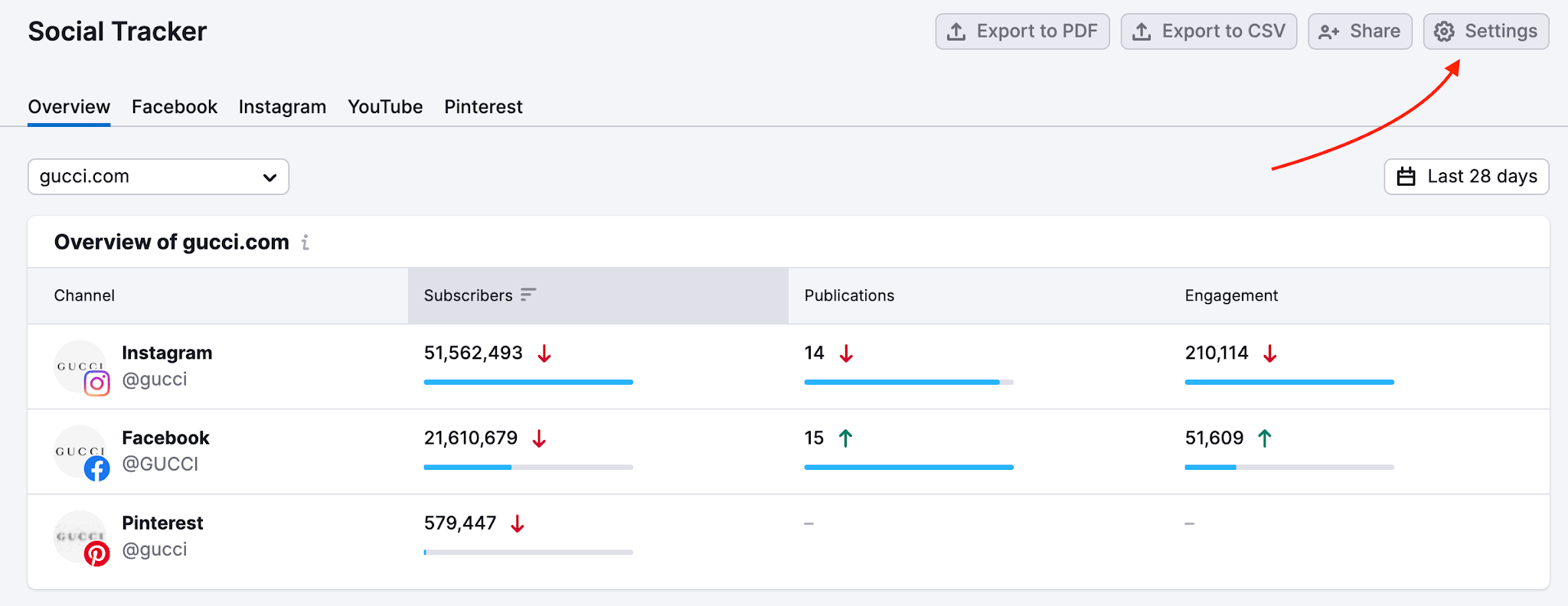
- Go to your Social Tracker campaign
- Open Settings (top right corner)
- Choose the social profile
- Remove the profile using the bin icon
This stops tracking a social media account.
How to replace or change a connected social media account
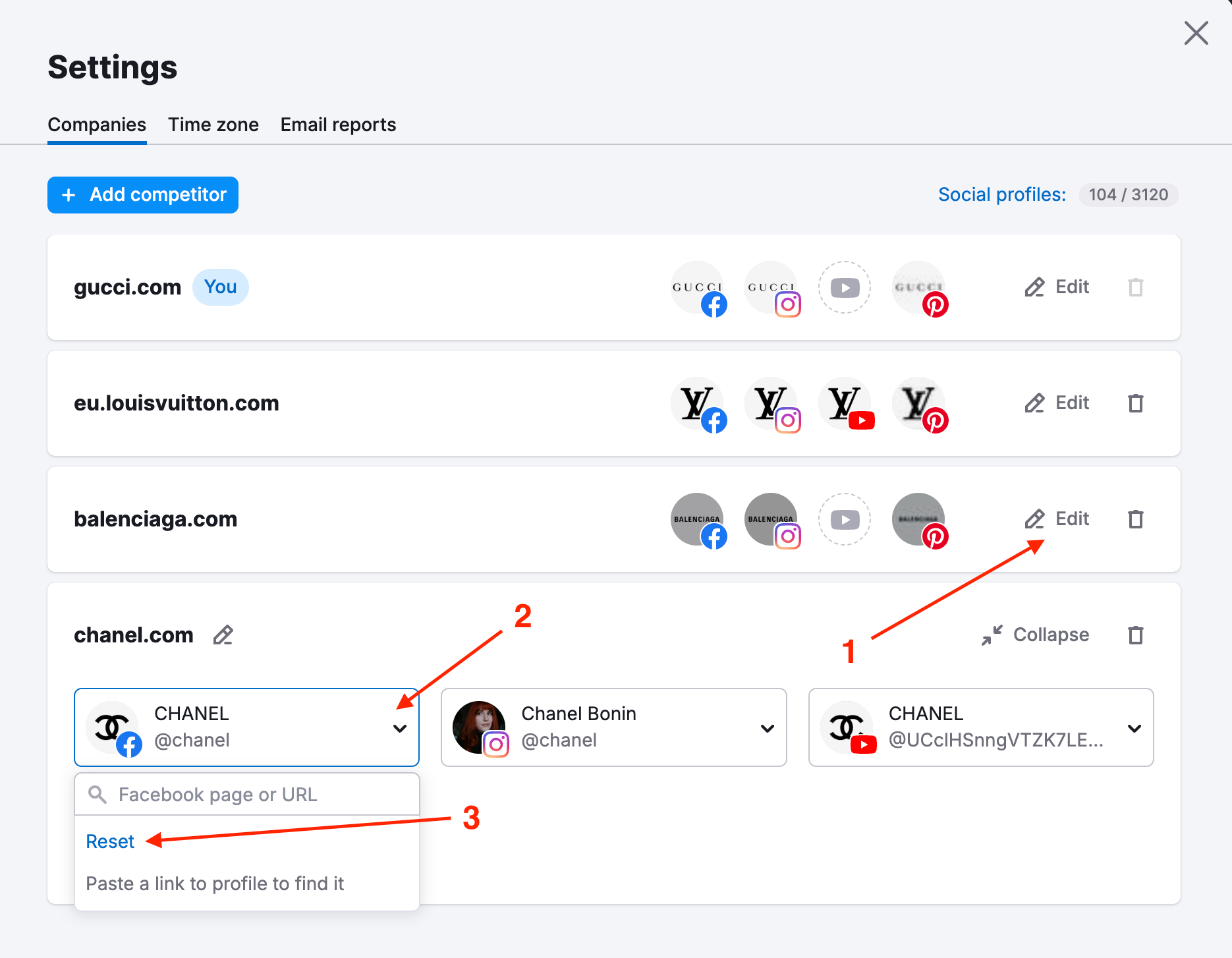
To replace a social media account in Social Tracker:
- Select a company and click Edit
- Choose the social network you want to replace
- Open the dropdown using the arrow
- Click Reset
How to stop tracking all company social media profiles
To stop tracking social media profiles for a company:
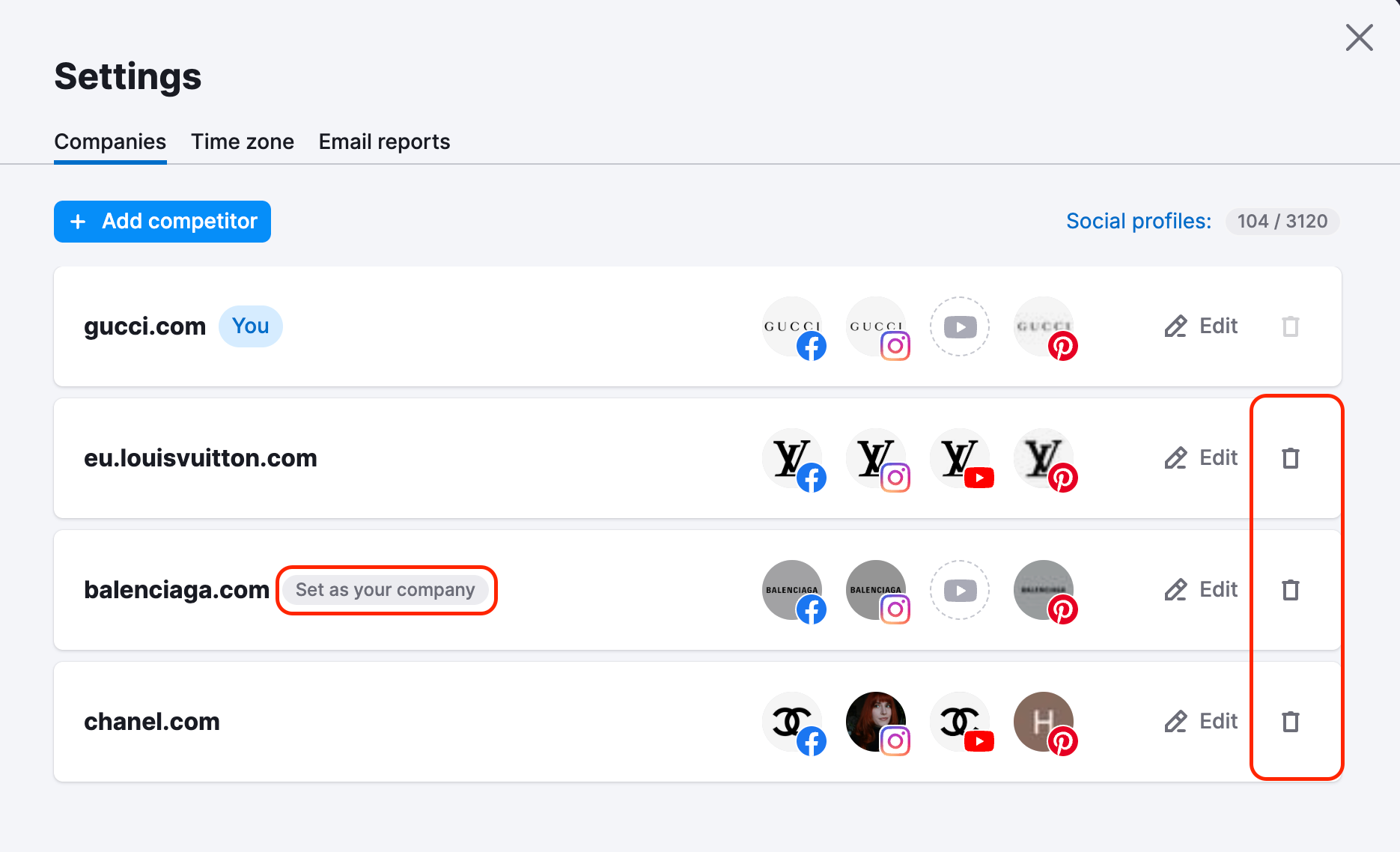
- Go to Settings → Companies
- You’ll see a list of all tracked companies (including your own, labeled “You”)
- To remove a company, click the bin icon next to it
This will stop tracking all social media profiles for that company.
Note: You cannot delete your own company directly. To remove it, first assign another company as “You”, then delete the previous one.
Should you face any troubles with the Semrush connection to your Social Media accounts, please refer to our Troubleshooting Guide.
 Back to Semrush Toolkits category